
Make an exFAT Bootable USB Flash Drive
Can you boot from an exFAT USB? Absolutely, but not by using a typical approach to USB booting. In order to make an exFAT bootable USB flash drive boot in UEFI mode, you will need to format the USB with multiple partitions. Then, install Grub2 on the boot partition. And finally, set your computer system to boot from the flash drive to confirm that it boots.
This process works for both Legacy BIOS and EFI booting. To be able to USB UEFI boot requires the creation of a second Fat/Fat32 partition, which is also covered in this segment.
Additional Notes: We will be creating an exFAT partition to be used for storing ISO files and for your traditional storage purposes. A second Fat32 BOOT partition will be created and used for Grub booting. Windows will only automatically assign a drive letter to the first partition. Which in turn, makes the fat32 boot partition natively hidden from Windows.
How can I view the hidden partition? You can use DiskMgmt to manually assign a drive letter to the hidden partition to make it accessible.https://googleads.g.doubleclick.net/pagead/ads?us_privacy=1—&client=ca-pub-0932618358223805&output=html&h=60&slotname=6626296877&adk=1184106306&adf=2530178959&pi=t.ma~as.6626296877&w=468&lmt=1651576961&psa=1&channel=1421415778&format=468×60&url=https%3A%2F%2Fwww.pendrivelinux.com%2Fmake-an-exfat-bootable-usb-flash-drive%2F&fwrattr=true&wgl=1&uach=WyJXaW5kb3dzIiwiMTQuMC4wIiwieDg2IiwiIiwiMTAwLjAuNDg5Ni4xMjciLFtdLG51bGwsbnVsbCwiNjQiLFtbIiBOb3QgQTtCcmFuZCIsIjk5LjAuMC4wIl0sWyJDaHJvbWl1bSIsIjEwMC4wLjQ4OTYuMTI3Il0sWyJHb29nbGUgQ2hyb21lIiwiMTAwLjAuNDg5Ni4xMjciXV0sZmFsc2Vd&tt_state=W3siaXNzdWVyT3JpZ2luIjoiaHR0cHM6Ly9wYWdlYWQyLmdvb2dsZXN5bmRpY2F0aW9uLmNvbSIsInN0YXRlIjoyOSwiaGFzUmVkZW1wdGlvblJlY29yZCI6dHJ1ZX1d&dt=1651576961437&bpp=5&bdt=664&idt=55&shv=r20220428&mjsv=m202204270101&ptt=9&saldr=aa&abxe=1&cookie=ID%3D0481720f92d551c3%3AT%3D1651566547%3AS%3DALNI_MbZtnrHhxIXirCtTfeFPG_CqVVV4g&correlator=3908914728755&frm=20&pv=2&ga_vid=1122808645.1651576961&ga_sid=1651576961&ga_hid=412094663&ga_fc=0&u_tz=540&u_his=1&u_h=1080&u_w=1920&u_ah=1032&u_aw=1920&u_cd=24&u_sd=1&dmc=8&adx=472&ady=1489&biw=1903&bih=929&scr_x=0&scr_y=0&eid=44759875%2C44759926%2C44759837%2C31065659%2C21067496%2C31062930&oid=2&pvsid=2889055367870006&pem=170&tmod=1964348309&uas=0&nvt=1&ref=https%3A%2F%2Fwww.google.com%2F&eae=0&fc=896&brdim=0%2C0%2C0%2C0%2C1920%2C0%2C1920%2C1032%2C1920%2C929&vis=1&rsz=%7C%7CeEbr%7C&abl=CS&pfx=0&fu=0&bc=31&ifi=5&uci=a!5&btvi=1&fsb=1&xpc=SLE34XKlNp&p=https%3A//www.pendrivelinux.com&dtd=78
The advantage of using an exFAT partition over a fat32 filesystem for storing ISOs is that you can store bootable ISO files larger than 4GB, and still UEFI boot from them via the Fat32 boot partition. This is necessary because a Fat32 filesystem does not support storing file sizes beyond 4GB.
Caveats: Legacy BIOS booting does not work on a very small select few finicky CSM booted systems. Secure Boot is also not supported via this method.
The Diskpart version packaged with Microsoft Windows 7 and lower (Vista, XP, etc.) is not able to create multiple partitions on removable USB media. The process will fail to make the second partition. However Windows 11, 10, 8 should work fine.
On Linux systems, in order to exFAT format the first partition, the exFAT filesystem driver and utilities must be installed.
How to make an exFAT Bootable USB Flash Drive
Covered below are both Windows and Linux methods to make a USB boot from exFAT. Simply toggle to switch to the exFAT Bootable USB method you prefer to use.https://googleads.g.doubleclick.net/pagead/ads?us_privacy=1—&client=ca-pub-0932618358223805&output=html&h=600&slotname=6626296877&adk=351715055&adf=2396678057&pi=t.ma~as.6626296877&w=250&fwrn=4&fwrnh=100&lmt=1651576961&rafmt=1&psa=1&channel=1421415778&format=250×600&url=https%3A%2F%2Fwww.pendrivelinux.com%2Fmake-an-exfat-bootable-usb-flash-drive%2F&fwr=0&fwrattr=true&rw=250&rpe=1&resp_fmts=4&wgl=1&uach=WyJXaW5kb3dzIiwiMTQuMC4wIiwieDg2IiwiIiwiMTAwLjAuNDg5Ni4xMjciLFtdLG51bGwsbnVsbCwiNjQiLFtbIiBOb3QgQTtCcmFuZCIsIjk5LjAuMC4wIl0sWyJDaHJvbWl1bSIsIjEwMC4wLjQ4OTYuMTI3Il0sWyJHb29nbGUgQ2hyb21lIiwiMTAwLjAuNDg5Ni4xMjciXV0sZmFsc2Vd&tt_state=W3siaXNzdWVyT3JpZ2luIjoiaHR0cHM6Ly9wYWdlYWQyLmdvb2dsZXN5bmRpY2F0aW9uLmNvbSIsInN0YXRlIjoyOSwiaGFzUmVkZW1wdGlvblJlY29yZCI6dHJ1ZX1d&dt=1651576961442&bpp=3&bdt=669&idt=146&shv=r20220428&mjsv=m202204270101&ptt=9&saldr=aa&abxe=1&cookie=ID%3D0481720f92d551c3%3AT%3D1651566547%3AS%3DALNI_MbZtnrHhxIXirCtTfeFPG_CqVVV4g&prev_fmts=468×60&correlator=3908914728755&pv_ch=1421415778%2B&frm=20&pv=1&ga_vid=1122808645.1651576961&ga_sid=1651576961&ga_hid=412094663&ga_fc=0&u_tz=540&u_his=1&u_h=1080&u_w=1920&u_ah=1032&u_aw=1920&u_cd=24&u_sd=1&dmc=8&adx=472&ady=2459&biw=1903&bih=929&scr_x=0&scr_y=0&eid=44759875%2C44759926%2C44759837%2C31065659%2C21067496%2C31062930&oid=2&pvsid=2889055367870006&pem=170&tmod=1964348309&uas=0&nvt=1&ref=https%3A%2F%2Fwww.google.com%2F&eae=0&fc=896&brdim=0%2C0%2C0%2C0%2C1920%2C0%2C1920%2C1032%2C1920%2C929&vis=1&rsz=%7C%7CeEbr%7C&abl=CS&pfx=0&fu=128&bc=31&ifi=6&uci=a!6&btvi=2&fsb=1&xpc=maJCqf1KQR&p=https%3A//www.pendrivelinux.com&dtd=151
- Make an exFAT bootable USB – Windows
- Make an exFAT bootable USB – Linux
Make a Grub2 exFAT Bootable USB Drive from Windows
I. Creating exFAT and fat32 Partitions on the USB drive
1. To get started, Open a Command Prompt as admin.
1.) From the Windows ‘⌕ Type here to search’ box, type cmd.exe
2.) Then click Run as administrator.
2. Type the following and press enter to launch Disk Management Tool.
diskmgmt.msc
Note which Disk and drive letter belong to your USB.
3. Back at the command prompt, type diskparthttps://7e83e8a73432a6810aabcfbcc0daf0b7.safeframe.googlesyndication.com/safeframe/1-0-38/html/container.html
diskpart
4. To select the disk, type the following replacing # with your USB disk number.
sel disk #
5. Then to wipe the disk, (WARNING: all existing content will be deleted) type the following one line at a time;
clean
convert mbr
6. Next to list the disk info so we can set size in the next step, type;
list diskAnd then note the size of your select * Disk in MB.
7. Now to prepare the first exFAT partition, type the following;
cre par pri
shrink minimum=50
format fs=exfat label=USB quick
8. Next to create and format the second partition as fat32, type;
cre par pri
format fs=fat32 label=BOOT quick
assign
9. Then, to verify the created partitions and volumes, type;
list par
list vol
IMPORTANT: note which drive letter was assigned to your fat32 BOOT partition. You’ll need it when installing Grub2.
10. To leave diskpart, type;
exit
II. Installing Grub2 for UEFI and BIOS on the USB drive
1. Download Grub2 from A1ive’s repository, and extract (using 7Zip) its contents to your Windows desktop.
Note: you’ll first need to extract the .tar file from the .gz, and then extract the contents of the .tar file. Once finished, you should have a grub folder containing the contents on your desktop.
2. Next to change to the grub directory, type or copy/paste the following;https://googleads.g.doubleclick.net/pagead/ads?us_privacy=1—&client=ca-pub-0932618358223805&output=html&h=600&slotname=6626296877&adk=3183142477&adf=898579077&pi=t.ma~as.6626296877&w=250&fwrn=4&fwrnh=100&lmt=1651576969&rafmt=1&psa=1&channel=1421415778&format=250×600&url=https%3A%2F%2Fwww.pendrivelinux.com%2Fmake-an-exfat-bootable-usb-flash-drive%2F&fwr=0&fwrattr=true&rw=250&rpe=1&resp_fmts=4&wgl=1&uach=WyJXaW5kb3dzIiwiMTQuMC4wIiwieDg2IiwiIiwiMTAwLjAuNDg5Ni4xMjciLFtdLG51bGwsbnVsbCwiNjQiLFtbIiBOb3QgQTtCcmFuZCIsIjk5LjAuMC4wIl0sWyJDaHJvbWl1bSIsIjEwMC4wLjQ4OTYuMTI3Il0sWyJHb29nbGUgQ2hyb21lIiwiMTAwLjAuNDg5Ni4xMjciXV0sZmFsc2Vd&tt_state=W3siaXNzdWVyT3JpZ2luIjoiaHR0cHM6Ly9wYWdlYWQyLmdvb2dsZXN5bmRpY2F0aW9uLmNvbSIsInN0YXRlIjoyOSwiaGFzUmVkZW1wdGlvblJlY29yZCI6dHJ1ZX1d&dt=1651576961445&bpp=2&bdt=672&idt=235&shv=r20220428&mjsv=m202204270101&ptt=9&saldr=aa&abxe=1&cookie=ID%3D0481720f92d551c3%3AT%3D1651566547%3AS%3DALNI_MbZtnrHhxIXirCtTfeFPG_CqVVV4g&prev_fmts=468×60%2C250x600&correlator=3908914728755&pv_ch=1421415778%2B&frm=20&pv=1&ga_vid=1122808645.1651576961&ga_sid=1651576961&ga_hid=412094663&ga_fc=0&u_tz=540&u_his=1&u_h=1080&u_w=1920&u_ah=1032&u_aw=1920&u_cd=24&u_sd=1&dmc=8&adx=488&ady=6579&biw=1903&bih=929&scr_x=0&scr_y=2906&eid=44759875%2C44759926%2C44759837%2C31065659%2C21067496%2C31062930&oid=2&psts=AGkb-H-7z9XUz3kdF7IzSWY2A-mx-VXrzXZLWOrbg3uI7h9nVqe63S9hv4dYLugXbsoM0axb-BxofB09p7Ufppo&pvsid=2889055367870006&pem=170&tmod=1964348309&uas=0&nvt=1&ref=https%3A%2F%2Fwww.google.com%2F&eae=0&fc=896&brdim=0%2C0%2C0%2C0%2C1920%2C0%2C1920%2C1032%2C1920%2C929&vis=1&rsz=%7C%7CeEbr%7C&abl=CS&pfx=0&fu=128&bc=31&ifi=7&uci=a!7&btvi=3&fsb=1&xpc=kK3Q9UrvS1&p=https%3A//www.pendrivelinux.com&dtd=8517
cd %UserProfile%\Desktop\grub3. To install Grub2 for BIOS and UEFI type or copy/paste the following,
(replacing X with your BOOT drive letter and # your Disk number),
and then press Enter.
grub-install.exe --force --no-floppy --target=i386-pc --boot-directory=X:\boot //./PHYSICALDRIVE#
grub-install.exe --force --removable --no-floppy --target=x86_64-efi --boot-directory=X:\boot --efi-directory=X:\
grub-install.exe --force --removable --no-floppy --target=i386-efi --boot-directory=X:\boot --efi-directory=X:\
Congratulations, you should have an exFAT bootable USB flash drive that is now able to Grub2 Boot from both Legacy BIOS and UEFI.https://7e83e8a73432a6810aabcfbcc0daf0b7.safeframe.googlesyndication.com/safeframe/1-0-38/html/container.html
Upon completion, simply reboot your pc, select the USB drive from your BIOS or UEFI boot device menu, and then Boot. If all went well, you should be presented with Grub2!
Booting ISO files from an exFAT partition
Booting your select ISO files from a flash drive prepared as an exFAT bootable USB;
Grub can read from an exFAT filesystem using this method because it includes an exFAT driver module. However, to actually be able to boot from a Live ISO stored on the exFAT partition via loopback requires that the distribution also include a driver, and that the exFAT partition is automounted during boot. Otherwise, once the boot process has been handed over, the path to the ISO will no longer be found. When that happens, you’ll likely be dropped into a BusyBox shell.
Can I Boot ISO from USB without exFAT driver support?
Yes, there are a couple of ways to circumvent this requirement;
- Use
PartNewto create and mount the ISO to a temporary partition. - Or use
map --memto map the ISO to a memory address (if you have enough system memory).
- Then, set the proper linux and initrd paths and proceed to boot the ISO.
This concludes the detailed procedure to create an exFAT bootable USB flash drive. Once I find the time, I plan to automate this functionality by adding the exFAT USB Boot feature to the YUMI Multiboot USB Software.
mydesktop grub2 entry
menuentry “Android-x86-r9.0-k49” –class android –class arch {
set root='(hd0,4)’
linux /android-9.0-r2/kernel quiet root=/dev/ram0 androidboot.selinux=permissive buildvariant=userdebug SRC=/android-9.0-r2
initrd /android-9.0-r2/initrd.img
}
menuentry “Linux Mint” –class ubuntu –class gnu-linux –class gnu –class os $menuentry_id_option ‘gnulinux-simple-dd798bbc-31e1-4851-9002-8bb902512d5c’ {
recordfail
load_video
gfxmode $linux_gfx_mode
insmod gzio
if [ x$grub_platform = xxen ]; then insmod xzio; insmod lzopio; fi
insmod part_gpt
insmod ext2
set root=’hd0,gpt5′
if [ x$feature_platform_search_hint = xy ]; then
search –no-floppy –fs-uuid –set=root –hint-bios=hd0,gpt5 –hint-efi=hd0,gpt5 –hint-baremetal=ahci0,gpt5 dd798bbc-31e1-4851-9002-8bb902512d5c
else
search –no-floppy –fs-uuid –set=root dd798bbc-31e1-4851-9002-8bb902512d5c
fi
linux /boot/vmlinuz-5.4.0-91-generic root=UUID=dd798bbc-31e1-4851-9002-8bb902512d5c ro quiet splash $vt_handoff
initrd /boot/initrd.img-5.4.0-91-generic
}
menuentry “Windows 11” –class windows –class os $menuentry_id_option ‘osprober-efi-D4F5-1C76’ {
insmod part_gpt
insmod fat
set root=’hd0,gpt1′
if [ x$feature_platform_search_hint = xy ]; then
search –no-floppy –fs-uuid –set=root –hint-bios=hd0,gpt1 –hint-efi=hd0,gpt1 –hint-baremetal=ahci0,gpt1 D4F5-1C76
else
search –no-floppy –fs-uuid –set=root D4F5-1C76
fi
chainloader /EFI/Microsoft/Boot/bootmgfw.efi
}
menuentry “Windows User-PE” –class windows {
set root=(hd1,1)
insmod part_gpt
insmod ntfs
insmod chain
chainloader /efi/boot/bootx64.efi
}
menuentry “Acronis True Image 2021” –class dvd {
linux /boot/dat10.dat vga=791 root=/dev/ram0 quiet
initrd /boot/dat11.dat /boot/dat12.dat
}
my laptop Grub2 Entry
menuentry “Android-x86-r9.0” –class android –class arch {
set root='(hd0,1)’
linux /android-9.0-r2/kernel quiet root=/dev/ram0 vmalloc=192M SRC=/android-9.0-r2
initrd /android-9.0-r2/initrd.img
}
menuentry “ChromeOS-Flex” –class puppy{
insmod part_gpt
insmod ext2
set root='(hd1,12)’
search –no-floppy –fs-uuid –set 6DA7-6C94
drivemap -s (hd0) ${root}
chainloader +1
}
menuentry “Linux-Mint” –class ubuntu –class gnu-linux –class gnu –class os $menuentry_id_option ‘gnulinux-simple-fd22e979-6f63-4b94-a1db-cdf55ec28370’ {
recordfail
savedefault
load_video
gfxmode $linux_gfx_mode
insmod gzio
if [ x$grub_platform = xxen ]; then insmod xzio; insmod lzopio; fi
insmod part_msdos
insmod ext2
set root=’hd0,msdos3′
if [ x$feature_platform_search_hint = xy ]; then
search –no-floppy –fs-uuid –set=root –hint-bios=hd0,msdos3 –hint-efi=hd0,msdos3 –hint-baremetal=ahci0,msdos3 fd22e979-6f63-4b94-a1db-cdf55ec28370
else
search –no-floppy –fs-uuid –set=root fd22e979-6f63-4b94-a1db-cdf55ec28370
fi
linux /boot/vmlinuz-5.4.0-91-generic root=UUID=fd22e979-6f63-4b94-a1db-cdf55ec28370 ro quiet splash $vt_handoff
initrd /boot/initrd.img-5.4.0-91-generic
}
menuentry “Windows11” –class windows {
set root='(hd0,msdos4)’
insmod part_msdos
insmod ntldr
insmod ntfs
ntldr /bootmgr
}
menuentry “True Image 2021” –class dvd {
linux /boot/dat10.dat vga=791 root=/dev/ram0 quiet
initrd /boot/dat11.dat /boot/dat12.dat
}
iptime공유기 pptp vpn 사용법 @ 리눅스민트
출처 : https://hiseon.me/linux/ubuntu/ubuntu-vpn-client/
GUI (Network Manager)
우분투 데스크탑 버전등 GUI 환경일 경우 VPN 연결 방법입니다. 아래의 명령어를 이용하여 VPN 클라이언트 패키지를 설치해 주시기 바랍니다.
$ sudo apt install network-manager-pptp그리고 좌측 상단 [Activities] 메뉴를 클릭한 다음, Settings 을 검색 후 실행합니다.

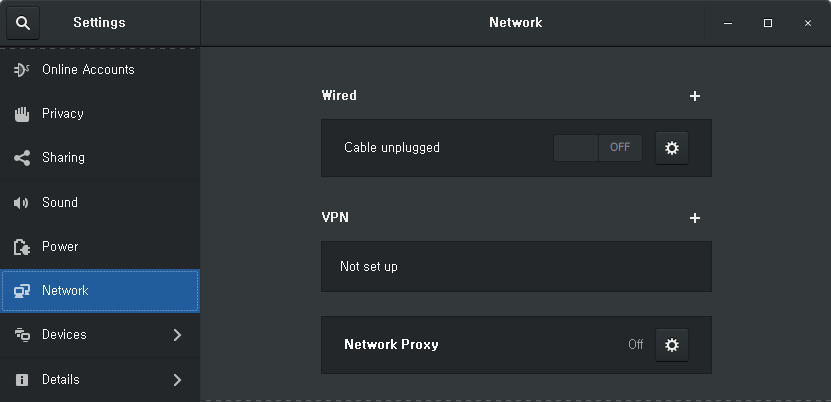
[Network] 탭을 선택 한 다음 VPN 영역에서 [+]을 클릭하셔서 VPN 연결설정을 시작합니다.
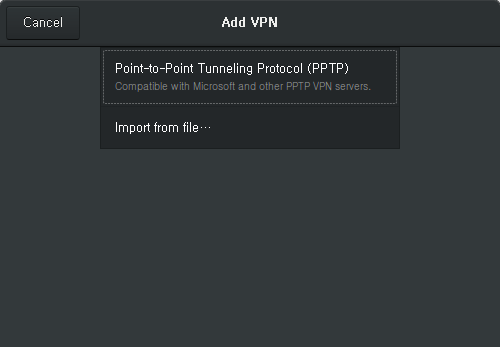
여러종류의 VPN 설정을 할 수 있는데, 이 글에서는 PPTP 프로토콜 설정방법에 대해서 설명드리도록 하겠습니다. Point-to-Point Tunneling Protocol(PPTP) 을 선택합니다.
VPN 연결 설정 내용이 나타나면 연결 이름(Name), VPN 서버(Gateway), 사용자 명 등을 입력합니다. 비밀번호 입력이 되지 않을 수 있는데 비밀번호는 연결을 맺을 때 입력하면 됩니다.
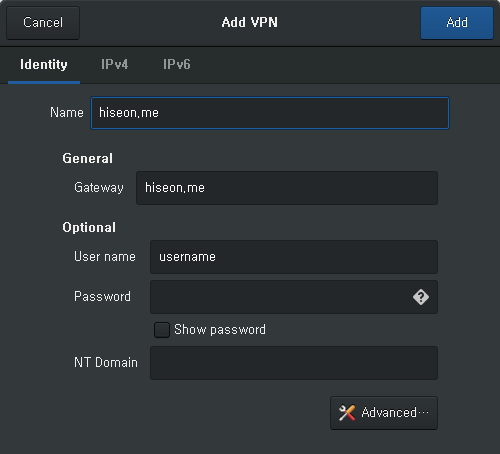
기본적인 설정 정보를 입력하고, 필요하다면 [Advanced] 버튼을 클릭한 다음 추가 설정을 합니다.
아래의 내용은 MSCHAP, MSCHAPv2 인증방법만 활성화 하고 모두 해제하였습니다. 그리고 [Use Point-to-Point encryption (MPPE)] 기능을 활성화하였습니다.
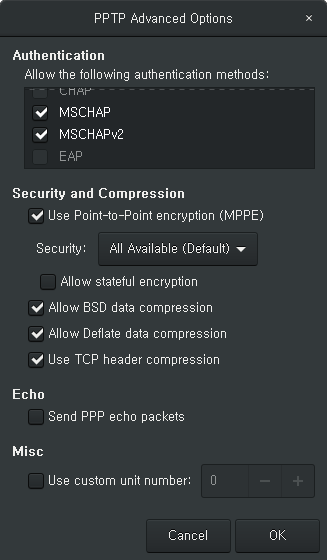
VPN 접속 설정이 모두 이뤄졌으면 [OK] 버튼을 클릭하여 연결 설정을 종료합니다.
그리고 Network 설정 팝업에서 생성된 VPN 연결정보 버튼을 클릭하여 연결합니다.

아래와 같이 VPN 접속 계정의 패스워드를 묻는 팝업에서 비밀번호를 입력하면 됩니다.
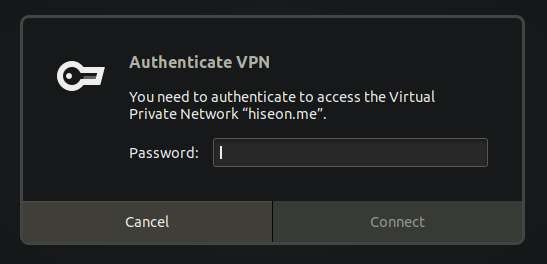
성공적으로 VPN 연결이 이뤄지면 상단의 아이콘이 아래와 같이 나타게 됩니다.

Synology NAS의 open VPN 서버 설정 방법
출처 : https://blogger.pe.kr/922
Synology NAS의 PPTP VPN 서버 설정 방법을 이전 포스트에서 설명했는데 한가지 설명을 빠트렸었다. 무엇인고 하니 설명한 환경에서 NAS를 SuperDMZ 또는 DMZ(NAT) 기능을 이용해 집의 인터넷 공유기에 할당되는 공인IP를 통채로 NAS에 할당한 경우에만 가능한 방법이다.
그렇지 않고 통신사에 연결되는 인터넷 공유기에는 공인IP가 할당되고 NAS에는 192.X.X.X로 표시되는 사설IP가 할당될 경우에는 PPTP, IPSEC 등의 VPN은 정상동작시키기 쉽지 않다. 인터넷 공유기에서 포트포워딩을 해줘야할 포트도 여러개인데다 설정을 하더라도 제대로 동작하지 않는 경우가 많기 때문이다.
그래서 오늘은 하나의 포트만 포트포워딩 하면 사용할 수 있는 OpenVPN 서버의 설정방법을 포스팅한다.
1. 인터넷 공유기에서 OpenVPN에서 사용할 통신포트를 포트포워딩 하기
통신사에서 제공하는 인터넷 공유기의 경우 다음과 같이 “포트포워딩(Port Forwarding)” 기능을 제공하는 경우가 대부분이다.

위의 경우 외부의 UDP 10472 포트를 내부망 192.168.219.102 IP의 10472 포트로 포워딩 해주는 정책이다. 192.168.219.102가 바로 시놀로지 NAS다. 즉 NAS에서 실행될 OpenVPN 서버가 UDP/10472 포트에서 OpenVPN 클라이언트의 접속을 기다리는 것이다.
2. 시놀로지 NAS에서 새 인증서 만들기
많은 시놀로지 사용자들이 OpenVPN 서버를 설정하면서 부닥치는 가장 큰 난관은 바로 인증서 설정과 관련된 부분이다. 일단 “인증서”가 뭔지 제대로 이해를 하지 못하고 있기 때문이다.
컴퓨터에서 사용되는 “인증서”는 컴퓨터의 신원을 보증하고 통신의 데이터를 암호화 할 때 사용되는 두 개의 암호키가 담겨져 있는 작은 파일이라고 이해하면 된다. 그리고 이 때 사용되는 암호기술이 바로 “PKI”다. (깊이 들어가면 너무 어지러워지니 이정도만 설명한다. ^^)
기본적으로 시놀로지 NAS의 접속을 HTTPS로 한다면 이미 인증서는 만들어져 있을 것이다. 하지만 이 포스트에서는 OpenVPN에서 전용으로 사용할 인증서를 새로 만들어보기로 한다. (기존의 기본 인증서로 설정해도 관계 없다. 생성하는 과정만 건너 뛰면 모든 작업은 동일하다.)
먼저 “제어판”에서 “보안” 메뉴를 선택하면 표시되는 “인증서” 탭을 선택한다.

“추가” 버튼을 누르고 “인증서 생성” 창이 실행되면 “새 인증서 추가” 를 선택한 다음 “다음” 버튼을 누른다.
“설명” 에는 적당한 설명을 넣는다. 그리고 “자체 서명 인증서 생성”을 선택한다.

다음과 같이 루트(CA) 인증서 생성에 필요한 기본값을 입력한다. 대충 입력해도 된다.

루트(CA) 인증서를 만들 정보를 입력하고 나면 실제 통신 시 사용할 인증서를 만들게 된다. 입력하는 정보가 아주 조금 다른데… 대충~ 에러가 나지 않도록만 입력하면 된다.

“적용” 버튼을 누르면 다음과 같이 인증서가 반들어진다. 그리고 인증서의 유효기간은 생성한 날로부터 1년이다.

3. VPN 서버가 새로 만든 인증서를 사용하도록 설정하기
“제어판” – “보안” – “인증서” 탭에서 “구성” 버튼을 누르면 인증서를 사용하는 서비스가 사용할 인증서를 선택할 수 있는 화면이 표시된다.
아래 화면처럼 “VPN Server”가 앞에서 새로 생성한 인증서를 사용하도록 선택해준다.

4. OpenVPN 서버 설정하기
이제 OpenVPN 서버를 설정해줘야 한다. 시놀로지 NAS에서 VPN 서버 인스톨 방법은 앞의 포스트를 참고하기 바란다. VPN Server를 설정하기 위해서 VPN Server를 실행하고 “OpenVPN” 메뉴를 선택한다.
그리고 “OpenVPN 서버 활성화”를 체크해준 뒤 다음과 같이 설정한다.

여기서 중요한 것은 “포트” 항목에 앞의 인터넷 공유기에서 NAS의 IP인 192.168.219.102의 포트포워딩 포트인 10472를 “포트” 항목에 입력하는 것이다.
그리고 나서 “적용” 버튼을 눌러 OpenVPN 서버를 실행한다.

OpenVPN 서버를 실행하면 화면 아래에 보이는 “내보내기 구성” 버튼이 활성화된다.
이 버튼을 눌러 OpenVPN 클라이언트에서 OpenVPN 서버에 접속할 때 사용할 “설정 파일”을 저장한다.

이 OpenVPN 접속 설정 파일을 적당한 이름으로 저장한다. 위에서는 synology-openvpn(10472).zip 파일로 저장했다. 그리고 하나의 파일을 더 저장해야 한다. 바로 인증서 파일이다.
5. 인증서를 파일로 저장하기
다시 인증서 화면으로 간 뒤 아래 화면처럼 새로 생성한 인증서 파일을 “인증서 내보내기” 버튼을 눌러 PC에 저장한다.

인증서 파일은 기본적으로 archive.zip 파일로 저장된다.
지금가지 두개의 파일을 PC에 저장했다. OpenVPN 클라이언트에서 사용할 접속 설정 파일과 인증서 파일 두 개다. 이제 이 두개 파일의 압축을 해제한 뒤 편집해야 한다.
6. OpenVPN 클라이언트 구성 파일 편집
Synology에서 제공하는 VPN 서버의 버그인지… 아니면 원래 그런 것인지 모르겠지만 앞에서 다운로드 받은 OpenVPN 클라이언트 접속 용 구성 파일은 인증서 정보가 제대로 설정되어 다운로드 되지 않는다. 그래서 수동으로 인증서 내용을 편집해 넣어줘야 한다.
먼저 다음과 같이 인증서가 저장된 archive.zip과 OpenVPN 접속 설정파일인 synology-open….zip 파일의 압축을 해제한다.

인증서 압축파일을 해제하면 4개의 파일이 표시되는데 cert.pem 파일과 prikey.pem 파일의 내용을 OpenVPN 접속 구성 파일에 추가해줘야 한다.

OpenVPN 접속 구성 파일이 포함된 zip 파일을 압축해제하면 VPNConfig.ovpn 이라는 OpenVPN 접속 용 구성파일이 보인다. 이 파일을 Notepad 등으로 열어준다.

먼저 상단에 위치한 YOUR_SERVER_IP를 인터넷 공유기에 할당된 외부 공인IP로 수정한다. 만약 시놀로지의 DDNS를 이용해 xxx.synology.me 와 같은 도메인주소를 사용한다면 그 도메인주소를 입력해주면 된다.

다음은 새로운 Notepad을 열어 인증서 파일들 중 cert.pem 파일을 다음과 같이 연다.

위의 cert.pem 파일의 내용 전체를 다음과 같이 VPNConfig.ovpn 파일을 열고 가장 아래부분의 </ca> 뒷 부분에 <cert> 태그를 추가하고 그 뒤에 붙여넣는다.

그리고 가장 뒷 부분에 </cert>을 추가한다.
마찬가지로 인증서 파일들 중 prikey.pem 파일의 내용을 모두 복사해 VPNConfig.ovpn 파일의 맨 뒷 부분에 <key> 태그를 추가한 뒤 붙여넣는다.

그리고 맨 끝에 </key>를 추가해준 뒤 저장한다.
여기까지 진행하면 OpenVPN 클라이언트 프로그램이 OpenVPN 서버에 접속할 때 사용할 구성파일이 완성된다.
7. OpenVPN Client 설치하고 접속 구성 파일 복사하기
OpenVPN 서버에 접속하여 암호화 된 안전한 Private(사설) 네트워크를 만들기 위해서는 OpenVPN GUI라는 클라이언트 프로그램을 설치하여야 한다. 다운로드는 여기에서 받으면 된다.
기본 옵션으로 설치한 뒤 앞에서 편집한 VPNConfig.ovpn 파일을 아래와 같이 기본 config 경로에 복사한다.

이 때 관리자권한이 필요한데 관리자 권한을 부여하여 복사해 넣으면 된다.
8. OpenVPN 서버에 OpenVPN GUI로 접속하기
설치하고 나면 VPNConfig 라는 접속 구성이 보인다. 아래와 같이 “연결”을 눌러 OpenVPN 서버에 접속하면 된다.

ID와 비밀번호를 묻는 창이 실행되면 시놀로지의 접소계정을 입력하면 된다. 다만 해당 계정은 시놀로지 DSM에서 OpenVPN 접속이 허용된 계정이어야 한다.

접속이 되면 다음과 같이 접속상태를 확인할 수 있고 “연결해제” 버튼을 눌러 VPN 네트워크를 파괴하여 접속을 끊을 수도 있다.

How to Boot ISO Files From GRUB2 Boot Loader
Last Updated: April 9th, 2021Xiao Guoan (Admin)7 CommentsDesktop Linux
출처 : https://www.linuxbabe.com/desktop-linux/boot-from-iso-files-using-grub2-boot-loader
This tutorial will be showing you how to boot ISO files stored on your hard drive with the GRUB2 boot loader. Normally you need to create a live DVD or live USB in order to boot Linux ISO images. You can do it with graphical tools or from the command line. But what if you don’t have an optical disk or USB thumb drive around, or your computer does not support burning ISO images to an optical disk?

GRUB to the rescue
GRUB2 (GRand Unified Bootloader) is the standard boot loader for Linux. It can boot Linux ISO image files stored on the hard drive without a USB or DVD. GRUB Legacy (version 0.x) doesn’t have this feature. Many Linux distributions can be booted directly from an ISO file.
- GRUB2 supports many file systems, including but not limited to
ext4,HFS+, andNTFS, which means you can put your ISO file on any of these file systems. - GRUB2 can read files directly from LVM and RAID devices.
- GRUB2 also has network support. You can load ISO images over the network by using the TFTP protocol.
To use GRUB2 to boot ISO files, you need a Linux distro with GRUB2 as the boot loader already installed on your computer. The following instructions work on both the traditional BIOS and the newer UEFI firmware. However, if you use UEFI, then you should disable secure boot in the firmware for GRUB2 to boot ISO files, otherwise, you might see the “can not find command loopback” error.
Now let’s get started.
Boot Ubuntu ISO Files From GRUB2
Log in to a computer running Linux and download an Ubuntu ISO image file. Then open up a terminal window and edit the /etc/grub.d/40_custom file with a command-line text editor like Nano.
sudo nano /etc/grub.d/40_custom
The first line of this file is #! /bin/sh indicating it’s a shell script. In this file, we can add custom entries to the GRUB boot menu.
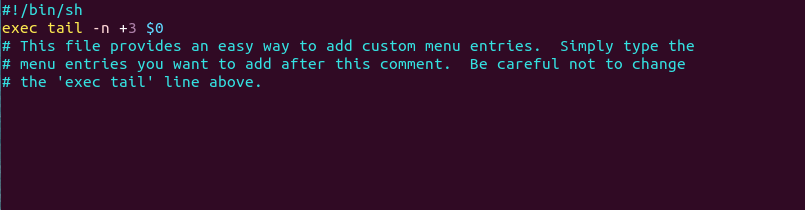
Copy and paste the following text at the end of this file.
menuentry "ubuntu-20.04.2.0-desktop-amd64.iso" {
  insmod ext2
  set isofile="/home/linuxbabe/Downloads/ubuntu-20.04.2.0-desktop-amd64.iso"
  loopback loop (hd0,5)$isofile
  linux (loop)/casper/vmlinuz boot=casper iso-scan/filename=$isofile quiet noeject noprompt splash
  initrd (loop)/casper/initrd
}
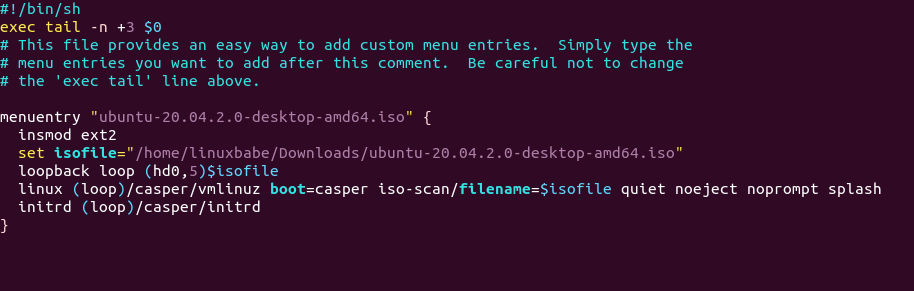
Where:
- menuentry: This entry will be displayed on the GRUB2 boot menu. You can name it whatever you like.
- The insmod command inserts a module. Since the ISO file is stored under my
ext4home dierctory, theext2module is needed. If it’s stored on an NTFS partition, then you needinsmod ntfsinstead. Note that GRUB may not be able to recognize XFS and Btrfs file system, so it’s not recommended to store the ISO file on a XFS or Btrfs partition. - set isofile: Specify that path of your ISO image file. Here I’m using Ubuntu 20.04 Desktop ISO file saved under the
Downloadsfolder. - loopback: Mount the ISO file.
hd0means the first hard drive in the computer and5means the ISO file is stored on the 5th disk partition. - The
linuxcommand loads a Linux kernel from the specified path. casper/vmlinuz.efi is the linux kernel inside the Ubuntu ISO image. - The
initrdcommand loads an initial ramdisk from the specified path. It can only be used after thelinuxcommand has been run. The initial ramdisk is a minimal root file system mounted to the RAM. casper/initrd.lz is the initrd file inside the Ubuntu ISO image.
Note that GRUB does not distinguish IDE from SCSI. In Linux kernel, /dev/hda refers to the first IDE hard drive and /dev/sda refers to the first SCSI or SATA hard drive. If you use a NMVe SSD, it might be named as /dev/nvme0n1, /dev/nvme1n1 and so on. But in GRUB, the first hard drive is always referred to as hd0, no matter what the interface type is. Also note that partition numbers in GRUB start at 1, not 0.
If the ISO file is stored on an extended partition of MBR disk, the partition number starts from 5, instead of 1. For example, the first logical partition inside an extended partition will be numbered as 5; the second logical partition inside an extended partition will be numbered as 6. To check your partition number, you can run lsblk or sudo parted -l command in the terminal window.
Save and close the file. (Press Ctrl+O, then press Enter to save a file in Nano text editor. Press Ctrl+X to exit.)
Then update GRUB boot menu with the following command:
sudo grub-mkconfig -o /boot/grub/grub.cfg
On Fedora, CentOS, RHEL, OpenSUSE, the command to run is:
sudo grub2-mkconfig -o /boot/grub2/grub.cfg
On Debian, Ubuntu, Linux Mint, you can use the following command to update GRUB boot menu.
sudo update-grub
You might not see the new menu entry right away, but you will see it when you reboot your computer.
sudo shutdown -r now
You will see your custom entry at the bottom of the GRUB2 boot menu. If GRUB couldn’t boot your ISO image, please check /etc/grub.d/40_custom file to see if there is a typo or you left out a space or something like that.

You can add as many menu entries as you like in the /etc/grub.d/40_custom file.
Debian ISO
Download the Debian live CD ISO file. Next, open up a terminal window and edit the /etc/grub.d/40_custom file with a text editor such as Nano.
sudo nano /etc/grub.d/40_custom
In this file, we can add custom entries to the GRUB boot menu. In this case, we want to add an entry to boot a Debian ISO file.
menuentry "debian-live-10.8.0-amd64-lxqt.iso" {
  insmod ext2
  set isofile="/home/linuxbabe/Downloads/debian-live-10.8.0-amd64-lxqt.iso"
  loopback loop (hd0,5)$isofile
  linux (loop)/live/vmlinuz-4.19.0-14-amd64 boot=live findiso=$isofile
  initrd (loop)/live/initrd.img-4.19.0-14-amd64
}
Note that the vmlinuz and initrd.img file include version number. You should mount your Debian ISO file and check if you should update it. Save and close the file. Then update GRUB boot menu.
sudo grub-mkconfig -o /boot/grub/grub.cfg
or
sudo grub2-mkconfig -o /boot/grub2/grub.cfg
Arch Linux ISO
Download the Arch Linux ISO file. Next, open up a terminal window and edit the /etc/grub.d/40_custom file with a text editor such as Nano.
sudo nano /etc/grub.d/40_custom
In this file, we can add custom entries to the GRUB boot menu. In this case, we want to add an entry to boot a Arch Linux ISO file.
menuentry "archlinux-2021.03.01-x86_64.iso" {
  insmod ext2
  set isofile="/home/linuxbabe/Downloads/archlinux-2021.03.01-x86_64.iso"
  loopback loop (hd0,5)$isofile
  linux (loop)/arch/boot/x86_64/vmlinuz-linux archisolabel=ARCH_202103 img_dev=/dev/sda5 img_loop=$isofile earlymodules=loop
  initrd (loop)/arch/boot/x86_64/initramfs-linux.img
}
Note that if you download a newer Arch Linux ISO file such as archlinux-2021.04.01-x86_64.iso, then you need to update the archisolabel to ARCH_202104. You can also find out what the label should be by mounting the Arch Linux ISO in your file manager. The label will be shown in your file manager.
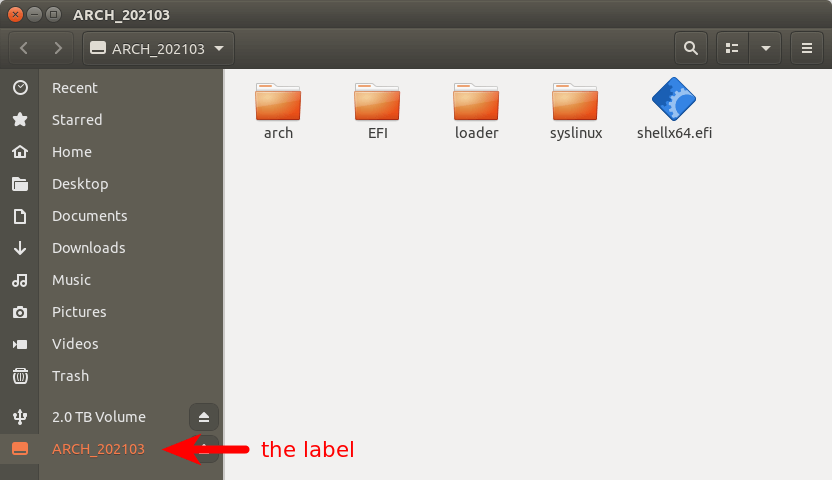
Also you might need to change the value of img_dev. It’s the name of the device where your ISO file is stored.
Save and close the file. Then update GRUB boot menu.
sudo grub-mkconfig -o /boot/grub/grub.cfg
or
sudo grub2-mkconfig -o /boot/grub2/grub.cfg
Clonezilla Live ISO
Clonezilla is a free open-source and reliable tool for bare metal backup and recovery of disk drives. Download the Clonezilla live ISO file. Next, open up a terminal window and edit the /etc/grub.d/40_custom file with a text editor such as Nano.
sudo nano /etc/grub.d/40_custom
In this file, we can add custom entries to the GRUB boot menu. In this case, we want to add an entry to boot Clonezilla Live ISO file.
menuentry "clonezilla-live-20210127-groovy-amd64.iso" {
  insmod ext2
  set isofile="/home/linuxbabe/Downloads/clonezilla-live-20210127-groovy-amd64.iso"
  loopback loop (hd0,5)$isofile
  linux (loop)/live/vmlinuz boot=live findiso=$isofile
  initrd (loop)/live/initrd.img
}
Save and close the file. Then update GRUB boot menu.
sudo grub-mkconfig -o /boot/grub/grub.cfg
or
sudo grub2-mkconfig -o /boot/grub2/grub.cfg
RHEL 8/CentOS Stream ISO
First, download the ISO image file. For RHEL 8, please read the following article to learn how to download ISO image file.
CentOS Stream ISO image can be downloaded from its official website.
Next, open up a terminal window and edit the /etc/grub.d/40_custom file with a text editor such as Nano.
sudo nano /etc/grub.d/40_custom
In this file, we can add custom entries to the GRUB boot menu. In this case, we want to add an entry to boot RHEL 8/CentOS/Fedora ISO file.
menuentry "rhel-8.3-x86_64-boot.iso" {
  insmod ext2
  set isofile="/home/linuxbabe/Downloads/rhel-8.3-x86_64-boot.iso"
  loopback loop (hd0,5)$isofile
  linux (loop)/isolinux/vmlinuz noeject inst.stage2=hd:/dev/sda5:$isofile
  initrd (loop)/isolinux/initrd.img
}
In the above code, /dev/sda5 is the 5th partition of the first disk where the ISO image file is stored. Save and close the file. Then update GRUB boot menu.
sudo grub-mkconfig -o /boot/grub/grub.cfg
or
sudo grub2-mkconfig -o /boot/grub2/grub.cfg
Fedora ISO
Fedora ISO image can be downloaded from its official website. Next, open up a terminal window and edit the /etc/grub.d/40_custom file with a text editor such as Nano.
sudo nano /etc/grub.d/40_custom
In this file, we can add custom entries to the GRUB boot menu. In this case, we want to add an entry to boot Fedora ISO file.
menuentry "Fedora-Workstation-Live-x86_64-33-1.2.iso" {
  insmod ext2
  set isofile="/home/linuxbabe/Downloads/Fedora-Workstation-Live-x86_64-33-1.2.iso"
  loopback loop (hd0,5)$isofile
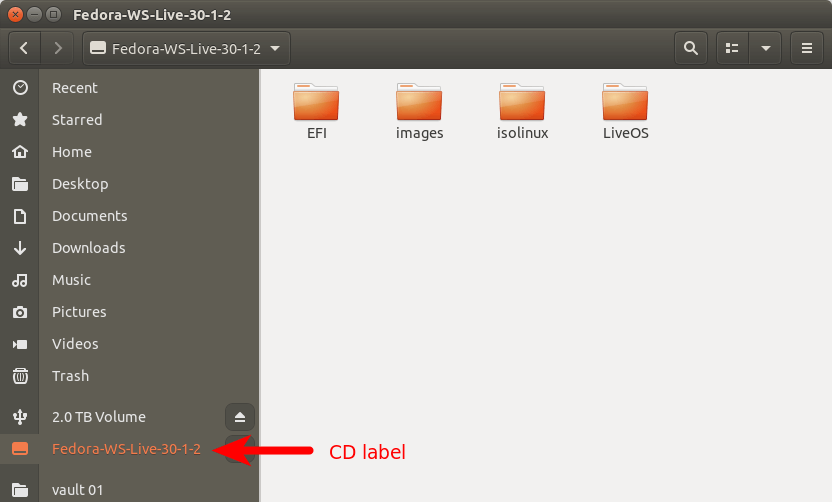
  linux (loop)/isolinux/vmlinuz root=live:CDLABEL=Fedora-WS-Live-33-1-2 rd.live.image verbose iso-scan/filename=$isofile
  initrd (loop)/isolinux/initrd.img
}
In the above code, CDLABEL is the the label displayed in your file manager when the ISO image is mounted.
Save and close the file. Then update GRUB boot menu.
sudo grub-mkconfig -o /boot/grub/grub.cfg
or
sudo grub2-mkconfig -o /boot/grub2/grub.cfg
OpenSUSE Leap Live ISO
Download the OpenSUSE Leap live ISO file. Next, open up a terminal window and edit the /etc/grub.d/40_custom file with a text editor such as Nano.
sudo nano /etc/grub.d/40_custom
In this file, we can add custom entries to the GRUB boot menu. In this case, we want to add an entry to boot OpenSUSE Leap Live ISO file.
menuentry "openSUSE-Leap-15.2-KDE-Live-x86_64-Build31.383-Media.iso" {
  insmod ext2
  set isofile="/home/linuxbabe/Downloads/openSUSE-Leap-15.2-KDE-Live-x86_64-Build31.383-Media.iso"
  loopback loop (hd0,5)$isofile
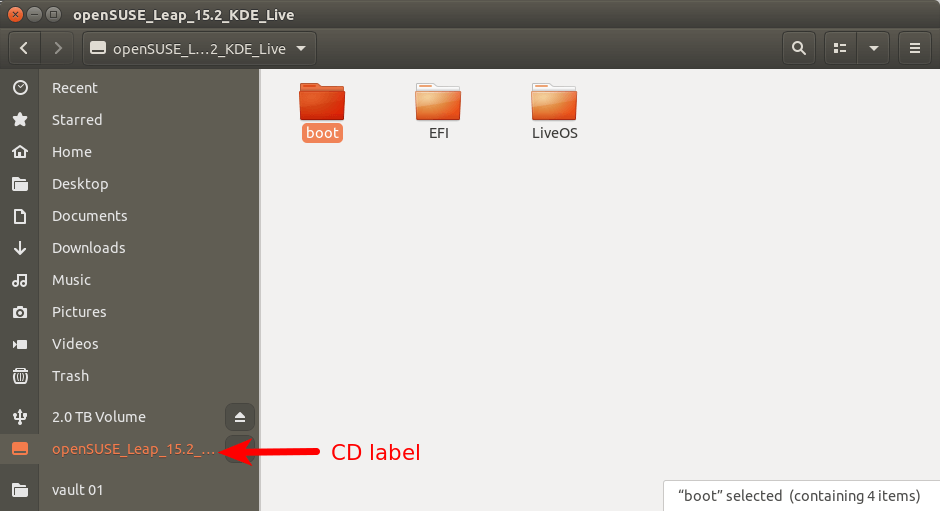
  linux (loop)/boot/x86_64/loader/linux boot=isolinux root=live:CDLABEL=openSUSE_Leap_15.2_KDE_Live rd.live.image verbose iso-scan/filename=$isofile
  initrd (loop)/boot/x86_64/loader/initrd
}
In the above code, CDLABEL is the the label displayed in your file manager when the ISO image is mounted.
Save and close the file. Then update GRUB boot menu.
sudo grub-mkconfig -o /boot/grub/grub.cfg
or
sudo grub2-mkconfig -o /boot/grub2/grub.cfg
Kali Linux Live ISO
Download the Kali Linux live ISO file. Next, open up a terminal window and edit the /etc/grub.d/40_custom file with a text editor such as Nano.
sudo nano /etc/grub.d/40_custom
In this file, we can add custom entries to the GRUB boot menu. In this case, we want to add an entry to boot a Kali Linux Live ISO file.
menuentry "kali-linux-2021.1-live-amd64.iso" {
  insmod ext2
  set isofile="/home/linuxbabe/Downloads/kali-linux-2021.1-live-amd64.iso"
  loopback loop (hd0,5)$isofile
  linux (loop)/live/vmlinuz boot=live findiso=$isofile
  initrd (loop)/live/initrd.img
}
Save and close the file. Then update GRUB boot menu.
sudo grub-mkconfig -o /boot/grub/grub.cfg
or
sudo grub2-mkconfig -o /boot/grub2/grub.cfg
Linux Mint Live ISO
Download the Linux Mint ISO file. Next, open up a terminal window and edit the /etc/grub.d/40_custom file with a text editor such as Nano.
sudo nano /etc/grub.d/40_custom
In this file, we can add custom entries to the GRUB boot menu. In this case, we want to add an entry to boot a Linux Mint ISO file.
menuentry "linuxmint-20.1-cinnamon-64bit.iso" {
  insmod ext2
  set isofile="/home/linuxbabe/Downloads/linuxmint-20.1-cinnamon-64bit.iso"
  loopback loop (hd0,5)$isofile
  linux (loop)/casper/vmlinuz boot=casper iso-scan/filename=$isofile quiet noeject noprompt splash
  initrd (loop)/casper/initrd.lz
}
Save and close the file. Then update GRUB boot menu.
sudo grub-mkconfig -o /boot/grub/grub.cfg
or
sudo grub2-mkconfig -o /boot/grub2/grub.cfg
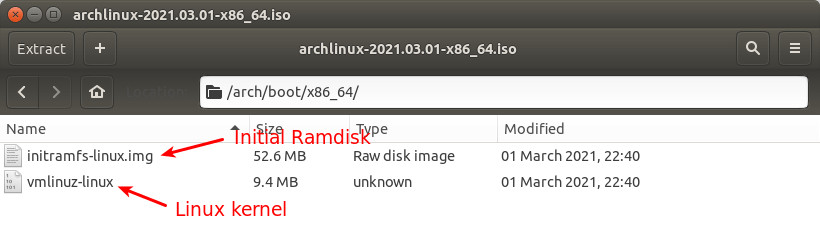
Finding Out the Linux kernel and initrd File Name
The Linux kernel and initrd (initial ramdisk) file can be different for different Linux ISO images. For Ubuntu, the Linux kernel is located at /casper/vmlinuz and the initrd image file is located at /casper/initrd. If you don’t know where they are located, just open your ISO image with archive manager. The following screenshot shows the Arch Linux ISO image file.
Display GRUB Boot Menu
Some Linux distributions like Ubuntu hide the GRUB boot menu if there’s only one OS installed on the hard drive. To show the GRUB boot menu, edit a configuration file.
sudo nano /etc/default/grub
Find the following line, which tells GRUB to hide the boot menu.
GRUB_TIMEOUT_STYLE=hidden
Add the # character at the beginning to comment out this line.
#GRUB_TIMEOUT_STYLE=hidden
Then find the following line.
GRUB_TIMEOUT=0
Change 0 to 10, so you will have 10 seconds to choose an entry in the GRUB boot menu.
GRUB_TIMEOUT=10
Save and close the file. Then update GRUB configurations.
sudo update-grub
Change the Boot Order in GRUB
Let’s say you want to boot into the ISO by default in GRUB, then edit the configuration file.
sudo nano /etc/default/grub
Find the following line, which makes GRUB select the first entry in the boot menu.
GRUB_DEFAULT=0
Change it to something like this:
GRUB_DEFAULT="clonezilla-live-20210127-groovy-amd64.iso"
If the /etc/grub.d/40_custom file has this entry menuentry "clonezilla-live-20210127-groovy-amd64.iso", then GRUB will select this entry by default. Update GRUB for the changes to take effect.
sudo update-grub
You can also keep the default boot order, but boot an ISO file for the next boot only with:
sudo grub-reboot clonezilla-live-20210127-groovy-amd64.iso
or
sudo grub2-reboot clonezilla-live-20210127-groovy-amd64.iso
Then reboot.
sudo shutdown -r now
Additional Tips
If you have a SATA disk and an NVMe SSD inside your computer, the SATA disk is the first and the NVMe SSD is the second. The same goes for a USB drive and an NVMe SSD. If you have an optical disk, then GRUB might think the optical disk is the first disk.
If you see the following error when GRUB trying to boot an ISO image file, it likely that you have specified the ISO file location to an optical disk.
can not get C/H/S value
If you have a file system that spans the entire disk, then you don’t need to specify the partition number in GRUB. For example, I have an ISO file on my second disk. I didn’t make any partitions on the second disk, so I can specify (hd1) in GRUB configuration file.
loopback loop (hd1)$isofile
If you see an error message like below when updating the GRUB boot menu, you can ignore this error.
grub-probe: error: cannot find a GRUB drive for /dev/loop11p3. Check your device.map.
Windows 10 ISO
Yes, you can create a Windows 10 bootable USB on Ubuntu or any Linux distro. If you don’t have a USB thumb drive, you can boot Windows 10 ISO on the hard drive with GRUB2. Download the Windows 10 ISO file. Note that you might not be able to download the ISO from this link on a Windows computer. This download link is visible to users on Linux computer.
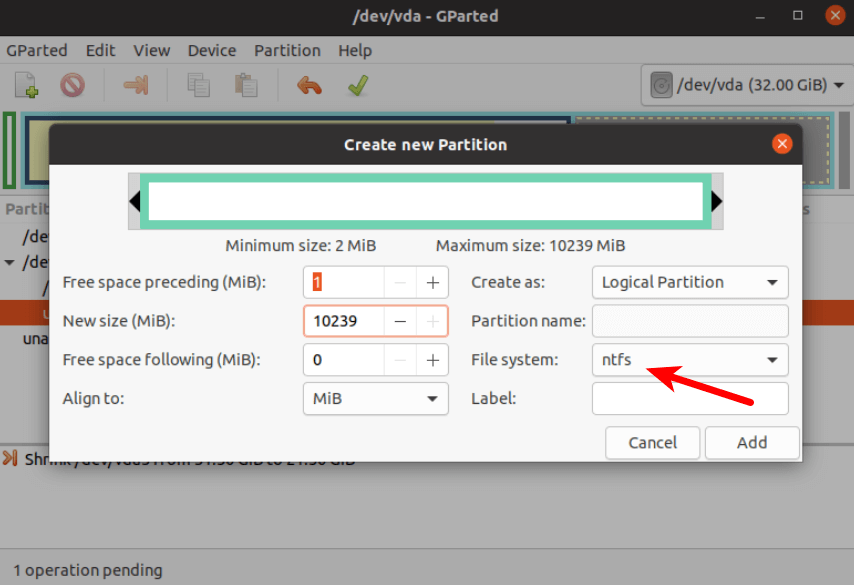
GRUB2 can not boot Windows 10 ISO directly. You need to create a separate NTFS partition on your disk with a partition editor like GParted and extract the Windows 10 ISO to that partition. The latest Windows 10 ISO file is 5.8G. The new NTFS partition should be at least 7G and it should not be used to store any other files.
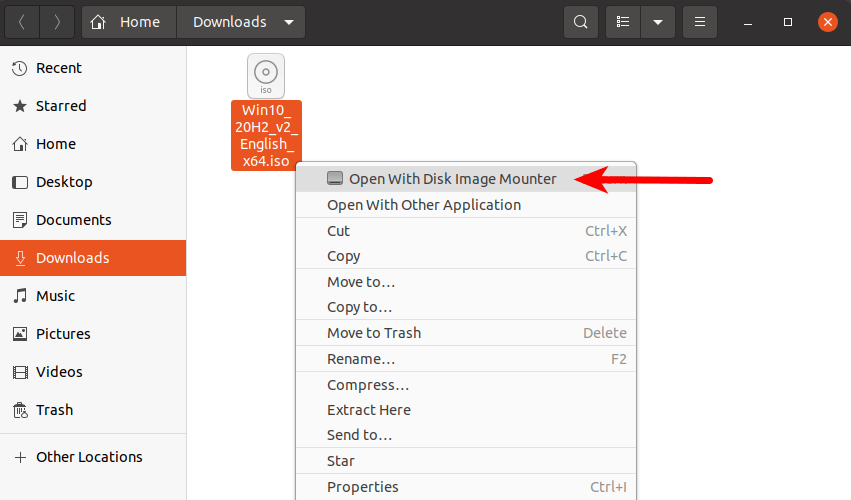
Then find your Windows 10 ISO in file manager. Open it with disk image mounter.
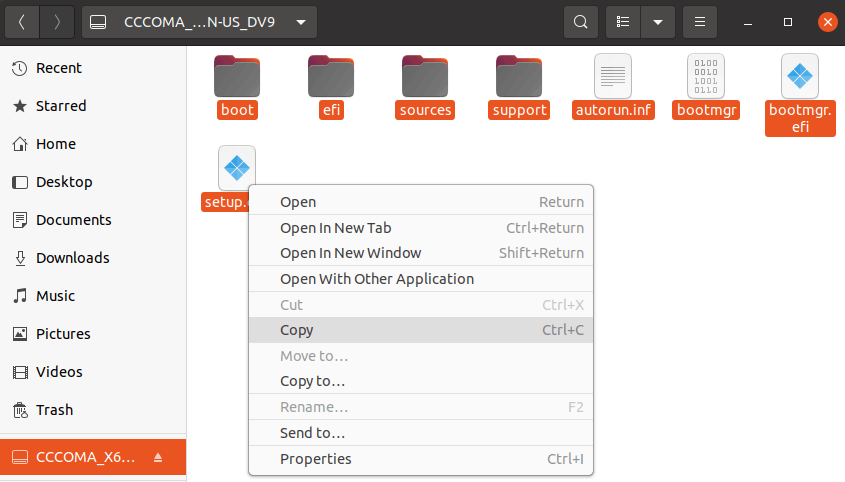
Open the mounted file system. Select all files and folders and copy them to the NTFS partition.
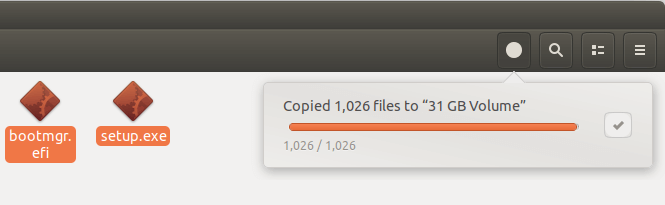
Sometimes the file manager on Ubuntu hangs and it seems that the copy operation has stopped. Actually, it’s working. Just be patient. When you see a checkmark, it means the copy operation has finished.
Next, open up a terminal window and edit the /etc/grub.d/40_custom file with a text editor such as Nano.
sudo nano /etc/grub.d/40_custom
In this file, we can add custom entries to the GRUB boot menu. In this case, we want to add an entry to boot the Windows 10 installer. If your computer still uses the traditional BIOS firmware, then add the following text in this file.
menuentry "Windows-10-Installer.iso" {
  set root=(hd0,6)
  insmod part_msdos
  insmod ntfs
  insmod ntldr
  #uncomment the following line if your computer has multiple hard drives.
  #drivemap -s (hd0) ${root}
  ntldr /bootmgr
}
My NTFS partition number is 6, so I use (hd0,6) as the root. You can run sudo parted -l command to check your NTFS partition number. If your computer has multiple hard drives, use the drivemap command to set the partition (hd0,6) as the first hard disk, so Windows will be able to boot.
If your computer uses UEFI firmware, then add the following text in this file.
menuentry "Windows-10-Installer.iso" {
  set root=(hd0,6)
  insmod part_gpt
  insmod ntfs
  insmod chain
  chainloader /efi/boot/bootx64.efi
}
Save and close the file. Then update GRUB boot menu.
sudo grub-mkconfig -o /boot/grub/grub.cfg
or
sudo grub2-mkconfig -o /boot/grub2/grub.cfg
Unplug all your external USB storage devices, then reboot your computer. Note that the Windows desktop ISO installer doesn’t work properly on Proxmox KVM virtual machines.
Wrapping Up
I hop this tutorial helped you boot ISO files with GRUB2 boot loader. As always, if you found this post useful, then subscribe to our free newsletter to get more tips and tricks. Take care 🙂
[리눅스(Linux)][우분투(Ubuntu)20.04]관리자 권한 폴더 열기
1. 터미널 창에서 관리자 권한 폴더 접근
sudo su
2. GUI에서 관리자 권한 폴더 접근
1) 플러그인 설치
터미널에 sudo apt install nautilus-admin -y 입력

2) 관리자 권한 플러그인 실행
터미널에 nautilus -q 입력

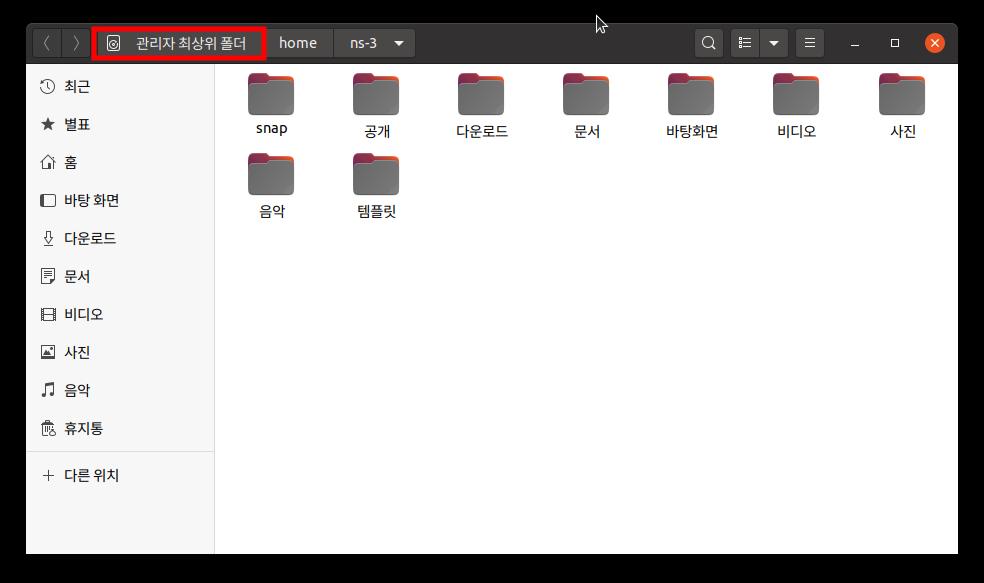
3) 폴더에서 마우스 오른쪽 클릭해서, Open as Administrator 클릭
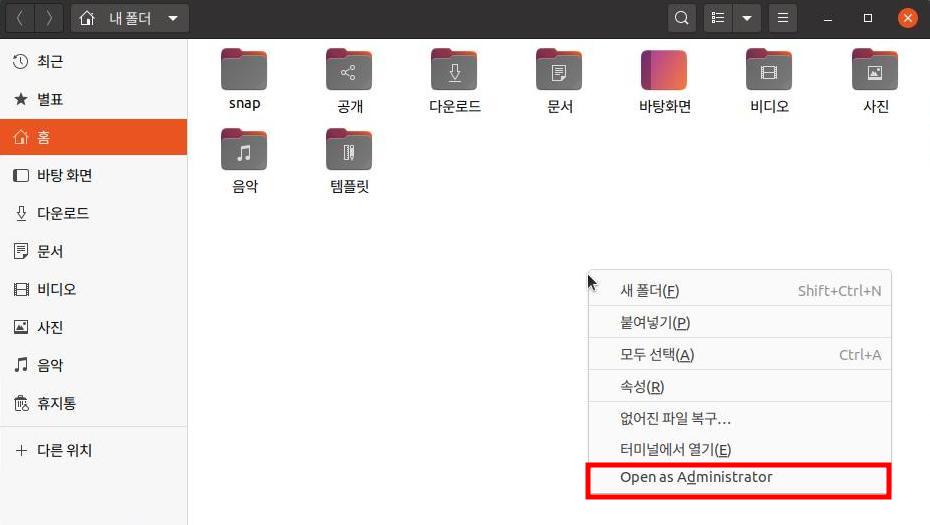
4) 로그인 암호 입력 및 완료
관리자 최상위 폴더 보임.
How grub2 works on a MBR partitioned disk and GPT partitioned disk?
There are actually four common (or at least semi-common) cases:
- BIOS-mode GRUB on MBR — This is the traditional PC configuration. In it, GRUB is split into multiple stages. The first stage resides in the first 440 bytes of the Master Boot Record (MBR). This first stage then loads and executes a second stage of GRUB, which typically resides in the sectors immediately following the MBR. This space is officially unallocated on most MBR disks, so putting GRUB code there is a bit risky; but it usually works OK. Additional code resides in files, typically in the
/boot/grubdirectory of the OS used to install GRUB. There are numerous variants on this configuration possible. For instance, putting the GRUB first stage in a Partition Boot Record (PBR; the first sector of a partition) was once popular, but is pretty uncommon today, and in fact I’m not 100% sure that modern GRUB 2 still supports this option. - BIOS-mode GRUB on GPT — In this variant, the first stage of GRUB still resides in the MBR (which for GPT is known as a protective MBR, which primarily exists to stop GPT-unaware tools from messing with the disk). The sectors following the MBR on a GPT disk, though, are GPT data structures and so cannot be used by GRUB. Instead, GRUB 2 relies on a partition known as the BIOS Boot Partition, which has a GPT type code of 21686148-6449-6E6F-744E-656564454649 (“bios_grub flag” set in libparted-based tools, or type EF02 in GPT fdisk). Additional files reside in the
/boot/grubdirectory, as with BIOS/MBR GRUB installations. - EFI-mode GRUB on MBR — In this configuration, the first GRUB code resides in a GRUB EFI binary stored on the EFI System Partition (ESP; type code 0xEF on an MBR disk). This file could be named anything, but it’s typically called
grubx64.efiin a subdirectory ofEFInamed after the distribution (such asEFI/ubuntu/grubx64.efi), or sometimesEFI/BOOT/bootx64.efi(the “fallback filename,” most commonly used on bootable external media like USB drives). As with BIOS-mode GRUB, additional configuration and driver files reside elsewhere, typically in/boot/grubon the installation OS; however, some distributions put these file on the ESP alongside the main GRUB binary. Note that this is the least common of the four configurations, since few EFI-based computers boot from MBR disks. - EFI-mode GRUB on GPT — This configuration is just like EFI-mode on MBR, except that the ESP has a type code of C12A7328-F81F-11D2-BA4B-00A0C93EC93B (“boot flag” set on libparted-based tools, or type EF00 in GPT fdisk). This configuration is rapidly becoming the most common one, as the transition from BIOS to EFI is proceeding quickly.
In addition to these cases, there are less common ones involving more exotic firmware and partition tables.
As you can see, there’s considerable variability in the details, and some details vary depending on your Linux distribution — or how you set up the details yourself, if you’re installing GRUB manually from source code.
루분투(lubuntu)20.04 설치후 한일…//펌글
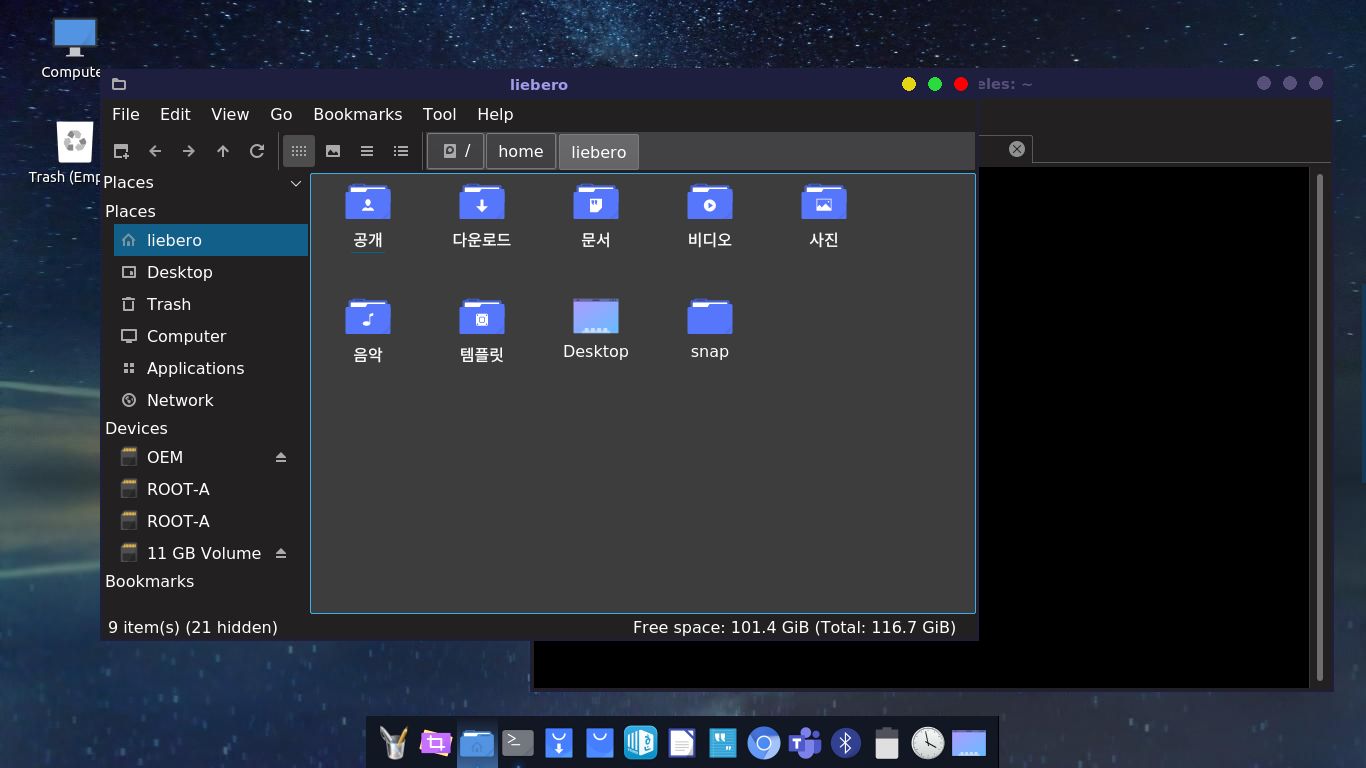
과거 서브컴퓨터로 사용하던 2016년산 크롬북 MicroSD에 우분투를 설치하였더니 무거워서 제대로 돌아가지 않았다. 주분투(xubuntu)도 약간 어색한 면이 없지 않았다.
그래서 루분투(lubuntu)를 설치하였는데 돌아가는 것이 대만족이다.
물론 MicroSD에 넣고 사용하기 때문에 부팅은 1분이나 걸린다.
우분투가 1분 45초정도 걸린것에 비하면 무척 빠르긴 하지만 SD카드이기 때문에 부팅은 느리다.
그러나 부팅후의 속도는 신규노트북 못지 않게 빠르다.
물론 서브용으로 외부에 부담없이 가지고 다니며 문서작업정도 하는 수준이라 필요한 것이 별로 없다.
그래도 대만족이다.
몇가지 입맞에 맞고 수정하여 사용중이나 그대로 사용해도 문제 없다.
그냥 SSD에 설치한다면 쿠분투의 kde plasma 환경에서 사용하겠지만 그럴 필요까지는 못느낀다.
물론 쿠분투(Kubuntu)에서 사용하는 kde plasma를 가장 좋다고 생각한다.
한마디로 중무장한 것과 소총한자루 비교하는 정도로 쿠분투를 좋아하지만 SD에서는 돌려보니 무리라서 있는 그대로 사용한다.
lubuntu는 LXQT로 전환하여 Qt를 사용하면서 창관리자로 kde를 추가작업없이 사용 가능하다.
1. 루분투 20.04버전에서 한글 설정
– 기본 설치된 fcitx에서는 한글이 되지 않는다. 한글패키지가 설치되어 있지 않다.
sudo apt install fcitx-hangul
– 리부팅하면 바로 한영전화 및 한글이 잘 된다. (전환키는 Ctl+Space)
2. 한글뷰어 설치 – 의존성 에러 발생, 해결방법
– 한컴에서 뷰어 다운로드
– 의존성 해결
sudo apt-get update 후 패키지 다운로드
https://www.ubuntuupdates.org/ 에서 패키지 다운로드

출처> https://yurmu.tistory.com/5?category=877519
중간중간 안되면 sudo apt –f install 으로 의존성 문제를 해결한다.
(-f는 망가진 의존성 패키지를 정정해 준다.)
필요 패키지를 추가로 깔아주거나 삭제해 준다.
– 마지막으로 다운받은 한컴뷰어를 설치해 준다.
sudo dpkg -i hancomoffice-hwpviewer-Ubuntu-amd64.deb
3. PlankDock 설치 및 설정
* kde 사용시 latte독 설치 (latte독 설치시 kde plasma가 창관리자로 돌아간다.)
4. 전체 다크모드로 전환
출처 : https://discourse.lubuntu.me/t/lubuntu-20-04-fully-dark-theme-background-windows-too/1219/2
1) qt5ct 설치
sudo apt-get install qt5ct
2) LXQT Session Settings 에 아래 내용 추가
QT_PLATFORM_PLUGIN
QT_QPA_PLATFORMTHEME
두가지 모두 값은 qt5ct 로 설정
3) 터미널에서 qt5ct 실행
4) Appearance 에서 Custom – darker 로 설정
5. 테마 설정
6. 검색도구 설치 및 설정
– 검색도구로 Albert 설정 및 사용 (맥의 Alfred를 대체)
7. Liberoffice 도 다크모드로 전환
1) 도구->옵션 ->응용 프로그램 색상선택, 문서배경 및 신청배경으로 검정 or Automatic 설정
2) 도구-> 옵션 -> 보기 에서 아이콘스타일 변경
8. 기타
– 화면캡처 : 출처> https://webnautes.tistory.com/513
Alt + Print Screen 키를 누르면 현재 활성화된 윈도우만 캡쳐되어 사진 폴더에 저장됩니다.
Shift + Print Screen 키를 누르면 마우스 커서가 십자 모양으로 바뀌며 캡처 하려는 영역을 사각형으로 지정하여 캡처할 수 있습니다.
캡쳐 결과는 사진 폴더에 저장됩니다.
Ctrl + Alt + Shift + R키를 누르면 전체 화면을 동영상 녹화할 수 있습니다.
녹화가 시작되면 화면 오른쪽 위에 오렌지색 원이 보이며

한번 더 Ctrl + Alt + Shift + R 키를 누르면 녹화가 중지됩니다.
