docker-compose의 docker-plex 업데이트하기

폴더로 가기

cd /volume1/docker/docker-compose

현재 정의된 서비스들 확인

docker compose config –services # (구형이면 docker-compose config –services)

최신 이미지 받기(모든 서비스)

docker compose pull # (또는 docker-compose pull)

docker compose pull docker-plex

변경된 컨테이너만 새 이미지로 재생성

docker compose up -d # (또는 docker-compose up -d)

docker compose up -d –no-deps docker-plex

이전 이미지 정리(선택)

docker image prune -f

[펌] 마이크로소프트 Office 2021 LTSC 무료 다운로드 및 정품 인증 방법이라는데…

2022. 9. 23. 22:02

이번 포스팅은 제목처럼 마이크로 소프트 Office 2021 을 무료로 다운로드하는 방법과 정품 인증하는 방법에 대한 포스팅 입니다.

먼저 Office 2021 설치를 위해 프로그램 다운로드를 받는 방법입니다.

제가 올려드리는 다운로드 링크는 Office 2021 리테일버전의 다운로드 링크입니다.

요즘에는 모두 64bit OS를 사용하시기 때문에 64bit 버전만 올려봅니다.

아래 다운로드 링크를 클릭하시면 다운로드가 진행됩니다.

Office 2021 64bit 다운로드

다운로드를 받으셨다면 설치를 해야겠죠.

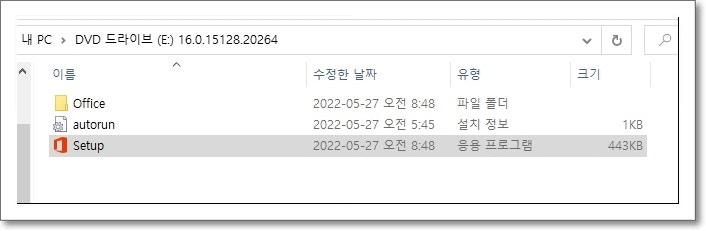
ProPlus2021Retail 설치

ProPlus2021Retail.img 파일을 윈도우 10이나 11에서 더블 클릭하면 자동으로 가상드라이버가 열리고 Setup 파일을 눌러서 설치를 진행하시면 됩니다.

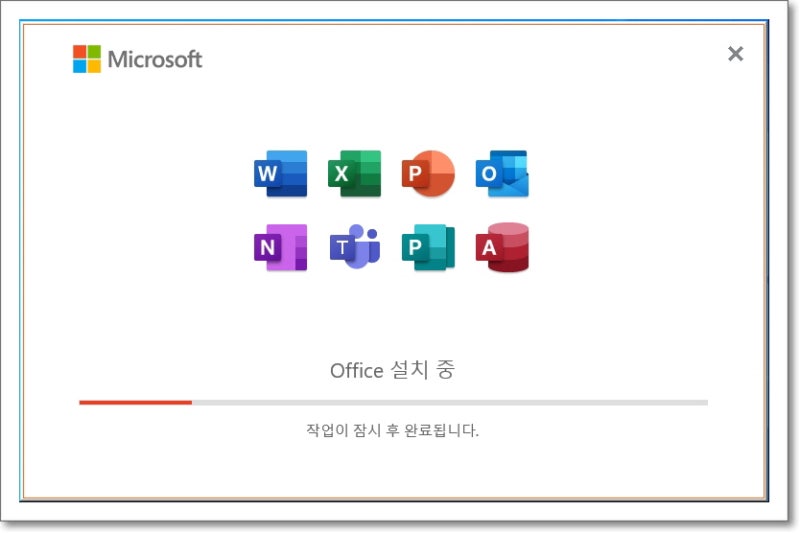
Office 2021 설치

Office 2021 설치과정은 기존 Office 2019와 다르지 않습니다.

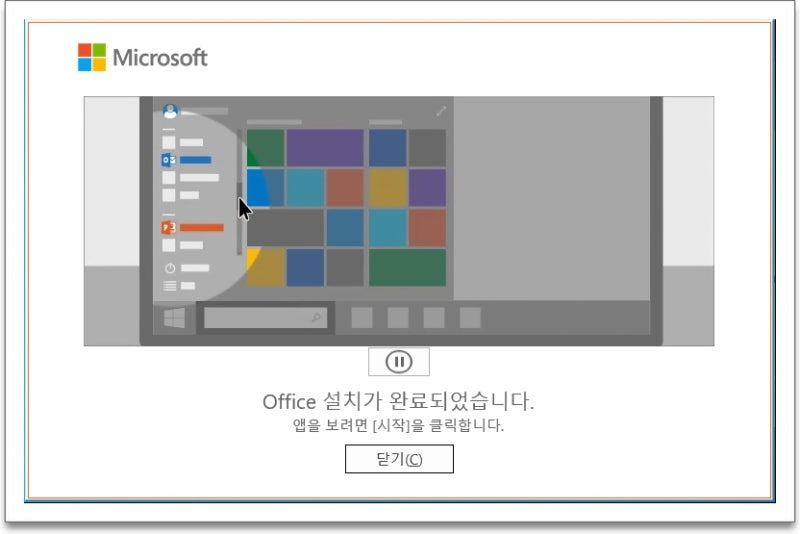
Setup 파일을 실행하면 다른 설정없이 설치가 진행되어 화면과 같이 끝나게 됩니다.

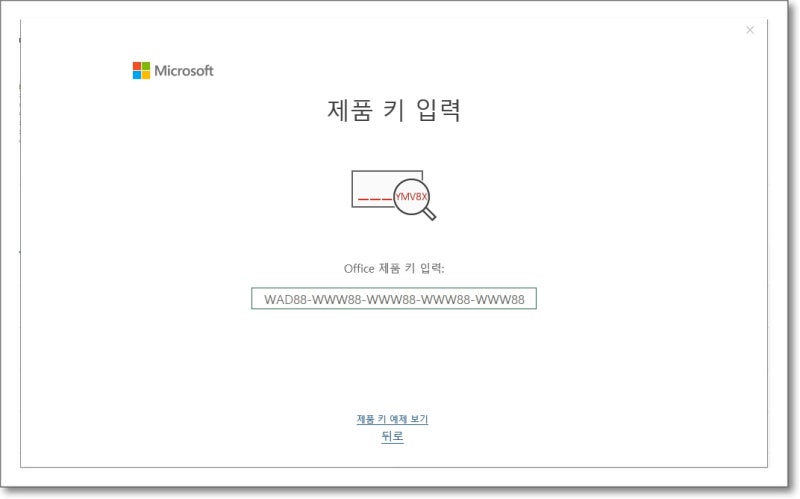
설치가 끝났다고 바로 오피스 프로그램을 실행하게 되면 다음과 같이 제품키를 입력하라고 나옵니다.

Office 2021 제품키 입력창

7일간을 평가판으로 Office 2021 사용이 가능하지만 이제 인증과정을 진행합니다.

먼저 CMD(명령프롬프트)를 관리자 권한으로 실행해 주세요.

꼭 기억해 주세요. 관리자 권한 실행!!!

CMD 명령프롬프트

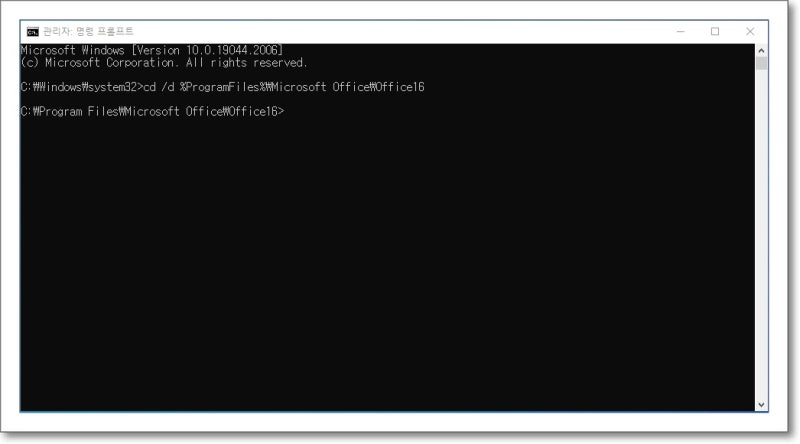
명령프롬프트를 관리자 권한으로 실행했다면 아래 명령어를 입력해서 Office 가 설치된 폴더로 이동해 줍니다.

cd /d %ProgramFiles%\Microsoft Office\Office16

이후 다음 명령어를 입력해서 볼륨라이선스를 설치해 줍니다.

for/f %x in(‘dir /b ..\root\Licenses16\ProPlus2021VL_KMS*.xrm-ms’)do cscript ospp.vbs /inslic:”..\root\Licenses16\%x”

에러나면.. 두줄로 입력되어서 그렇다…일단 vbs 띄우고 /inslic~ 계속…(메모장에서 수정해서 붙이자)

위 두 단계가 끝났다면 아래 명령어를 차례로 입력해 줍니다.

복사하기로 복사해서 붙여넣기 하셔도 되요.^^

cscript ospp.vbs /setprt:1688

cscript ospp.vbs /unpkey:6F7TH >nul

cscript ospp.vbs /inpkey:FXYTK-NJJ8C-GB6DW-3DYQT-6F7TH

cscript ospp.vbs /sethst:s8.uk.to

cscript ospp.vbs /act

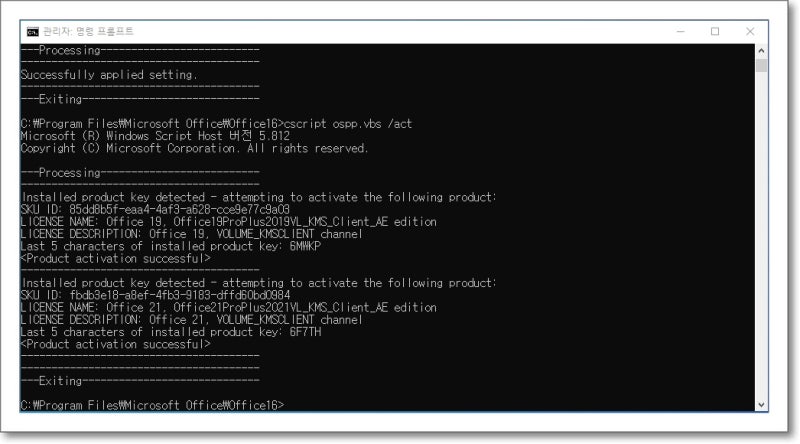
모든 명령어를 입력하고 나면 다음과 같은 화면이 나오게 됩니다.

Office 2021 인증완료

<Product activation successful> 이라고 화면에 나오면 정상적으로 KMS 인증이 끝난겁니다.

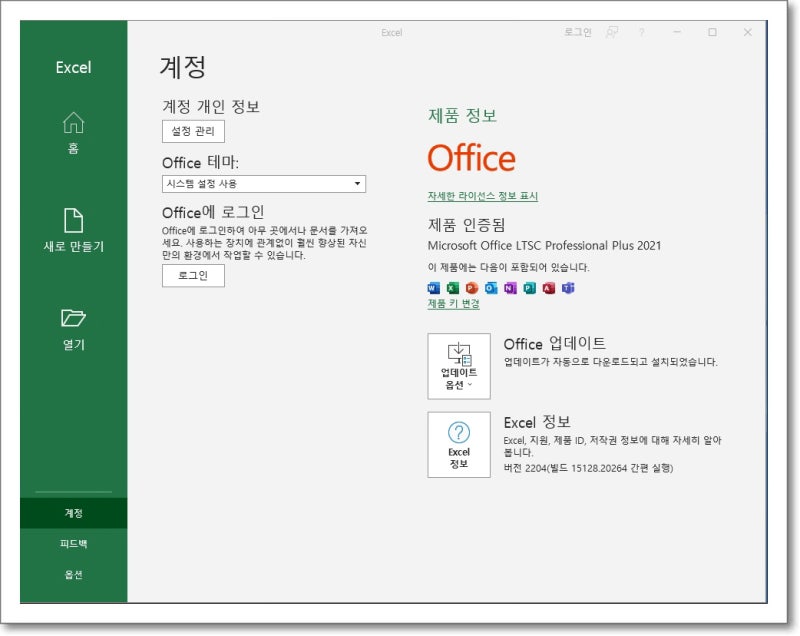
이제 Office 2021을 실행하시면 인증이 완료된 걸 확인하실 수 있어요.

Office 2021 제품 인증화면

정상적으로 업데이트 진행도 잘되는 걸 확인했습니다.

명령어 입력이 어려우신 분은 아래 파일 다운로드 후 압축 푸시고 관리자 권한으로 실행해주세요.

첨부파일

Office2021Activation.zip

바이러스 있다고 나옴….겁나…

Docker로 설치한 워드프레스 업데이트

 도커로 워드프레스를 설치하고 잘 사용하다가 업데이트를 마딱드린 순간이 찾아왔다. 워드프래스 내의 자동 업데이트 기능을 사용해 보려 했으나, FTP 정보를 입력 해라는둥 도커 시스템에는 적합하지 않는 업데이트 방법만 제시했다. 그래서 도커를 이용해서 WordPress를 업데이트할 방법을 찾아봤다.

 방법은 간단하다. 파일 두개를 삭제한 후, Docker의 워드프레스 이미지를 업데이트 하고 컨테이너를 재생성 하면 된다.

/index.php
/wp-includes/version.php

전체 코드는 아래와 같을것이다:

rm index.php && rm wp-includes/version.php
docker pull wordpress
docker stop wordpress_container
docker rm wordpress_container
docker run --name=wordpress_container --restart=always (그 외 옵션들)

Docker Compose 를 쓴다면 조금 더 깔끔하게 정리된다:

rm index.php && rm wp-includes/version.php
docker-compose pull 
docker-compose up -d

 주의할 부분이 있다. 이 방식은 WordPress 코어를 최신 버전으로 덮어쓴다는 것이다. /wp-content 폴더나 /wp-config.php 파일을 제외한 모든 기본 워드프레스 파일들이 모두 덮어써진다. 플러그인등을 사용하지 않고 기존에 워드프레스 코어를 직접 수정한 경우라면 이 방법을 사용해서는 안된다. 이 방법을 사용했다가는 기존 수정했던 코드들이 다 날라갈 것이다.

Docker image 만들기

컨테이너로 이미지 만들기…

– 기본이미지를 이용하여 django 웹 어플리케이션이 설치 및 구성된 이미지를 만들것이다.

1. docker 설치

– http://galid1.tistory.com/321

2. 기본 이미지 다운로드

– http://galid1.tistory.com/322

3. 컨테이너 실행 및 접속

1) 이미지 확인

$ docker images

2) 컨테이너 실행, 접속(centos systenctl permission 오류)

$ docker run -i -t docker.io/centos /bin/bash

3) Systemctl Permission오류 해결

1. 우선 /sbin/init을 쉘로  하는 컨테이너를 백그라운드로 실행시킨다

$ docker run -d –name centos docker.io/centos /sbin/init

2. 방금 백그라운드로 생성한 컨테이너에 docker exec를 통해 /bin/bash 프로세스를 생성한다

3. 확인

– docker centos 컨테이너 내부에서 systemctl 사용이 가능하다

4. django 웹 어플리케이션 환경 구축

– 컨테이너 안에서 웹어플리케이션 환경을 구축해야한다

– Django (CentOS7) 구축법 :  http://galid1.tistory.com/318http://galid1.tistory.com/319

5. 이미지화 하기

1) docker stop “이미지화 할 컨테이너”

– 컨테이너를 이미지화 하기전 멈춘다

2) docker ps -a

– 종료된 컨테이너의 이름을 알아낸다

3) $ docker commit -a “jjy”  container_id  image_name/tag

– 컨테이너를 이미지화 한다

mysql DDL, DML 포함해서 이미지 만들기 – https://medium.com/better-programming/customize-your-mysql-database-in-docker-723ffd59d8fb

Address already in use (Bind failed)

당황하지말고 현재 사용중인 포트번호를 검색하자

netstat -lntp

현재 8080 포트가 8533이라는 PID를 가진 친구가 사용중인 것을 확인할 수 있다.

해당 친구를 죽여보자 

kill -9 8533

그런후 다시  자바코드를 구동해보자 정상 실행되는것을 확인 할 수 있다.

jellyfin 속도 빠르게…캐시늘리기

docker stop jellyfin
cd /opt/jellyfin/app/data/data/
sqlite3 library.db
pragma default_cache_size;
# (this will show current size)
pragma default_cache_size = 5000000;
pragma default_cache_size;
# (this will show current size, just to check it worked)
.exit
docker start jellyfin

Synology: Basic Command Lines For DSM 7

3 February 2021 by Marius Bogdan Lixandru

Synology Basic Command Lines For DSM 7

A Linux command line is a text interface to your Synology NAS. Often referred to as the shell, terminal, console, prompt or various other names, it can give the appearance of being complex and confusing to use. This little guide will teach you some basic command lines for your DSM 7, to become familiar with SSH. Let’s assume there’s no prior knowledge, but by the end I hope you’ll feel a bit more comfortable the next time you’re faced with some instructions that begin with “Open a terminal” and log into your NAS. Note: DSM is a Linux operating system for Synology DiskStation and RackStation products.

  • STEP 1

Please Support My work by Making a Donation.

  • STEP 2

Follow my step by step guide on How to SSH into a Synology NAS. After that, try some basic command lines below.
Note: Be careful! Use only the command lines you need.

File Management on DSM 7

To edit a text file (using vi)

vi /location_of_file/file_name

To go to a directory

cd /directoryName

To make a directory

mkdir /directoryName

List contents of directory

dir

Count the number of files in the current directory and its sub-directories

find . -type f | wc -l

Check size of directory and sub-directories

du -ah /path/to/dir

Find a file

find / -name fileName

Delete a file

rm fileName

Delete a directory and its content

rm -r directoryName

Move or Rename a file

mv /sourceDirectory/sourceFile /destination

Copy a file

cp /sourceDirectory/sourceFile /destination

Copy groups of files

cp /sourceDirectory/*.* /destination

Copy a directory and any sub-directories

cp -r -p /sourceDirectory /destinationpath

Create an uncompressed tar (.tar) archive

To create an uncompressed (.tar) archive of all files, directories and subdirectories in the current directory:

tar -cvf archivefilename.tar *

Create a compressed tar (.tgz) archive

To create a compressed (.tgz) archive of all files, directories and subdirectories in the current directory:

tar -cvzf archivefilename.tgz *

Unpack .tar archives

For uncompressed .tar archives

tar xvf file.tar

Unpack .tar.gz archives

For gzip compressed .tar.gz archives

tar xvzf file.tar.gz

System Management on DSM 7

Reboot your Synology NAS device 

reboot

Shutdown your Synology NAS device

poweroff

Stop a process on your Synology NAS

kill processID

Stop a program on your Synology NAS

killall programName

Display most current processes running on your Synology NAS

top

Report disk space usage on your Synology NAS

df

Show all current DSM processes

ps

Show currently open ports and their status on your Synology NAS

netstat -an

Change Logged in user on your Synology NAS

If you are logged in as root/admin you can open a new shell as if you just logged in as another user, substitute xxx with the user name. To return to root session use the command line “exit”.

su – xxx

Install an IPKG program package

NoteInstall IPKG.

ipkg install fileName

Uninstall an IPKG program package

ipkg remove filename

Restart Services on DSM 7

Apache

/usr/syno/etc/rc.d/S97apache-user.sh restart

Appletalk

/usr/syno/etc/rc.d/S81atalk.sh restart

Cron and Crond

/usr/syno/etc/rc.d/S04crond.sh stop
/usr/syno/etc/rc.d/S04crond.sh start
systemctl restart crond
systemctl restart synoscheduler

FTP

/usr/syno/etc/rc.d/S99ftpd.sh restart

Index

/usr/syno/etc/rc.d/S66synoindexd.sh restart

Itunes

/usr/syno/etc/rc.d/S99itunes.sh restart

MySQL

/usr/syno/etc/rc.d/S21mysql.sh restart

NFS

/usr/syno/etc/rc.d/S83nfsd.sh restart

Postgresql

/usr/syno/etc/rc.d/S20pgsql.sh restart

Samba

/usr/syno/etc/rc.d/S80samba.sh restart

SSH

/usr/syno/bin/synosystemctl restart sshd.service

System Information on DSM 7

Check system memory info

cat /proc/meminfo

Check CPU Info

cat /proc/cpuinfo

Check Interrupts in use

cat /proc/interrupts

Check the current File Systems in use

cat /proc/filesystems

Comprehensive information on the file system format

tune2fs -l /dev/hda3

Check the Linux Version of your DSM

cat /proc/version

Check RAID Devices

cat /proc/mdstat

Check Environment Variables

env

Check what physical and logical disks/partitions you have in a multi-bay NAS

cat /proc/diskstats

or for all NAS types

cat /proc/partitions

or for similar, but different info

fdisk -l

Miscellaneous for DSM 7

Clear terminal screen

clear

Note: The command line above also works perfectly with DSM 6.2.4

This post was updated on Monday / February 7th, 2022 at 9:20 PM