GRUB Bootloader Themes

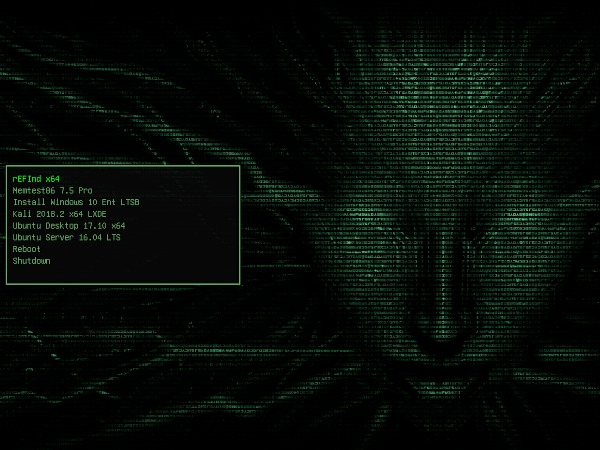
Do you dual boot often? Well make the Bootloader Selection Screen Awesome! Here are my top 5 GRUB Bootloader themes.

All-In-One PackThis Pack is everything below so you can swap between them. It is a custom script I made so I can choose any of my favorite bootloaders below. This may not include original project updates as they happen, so check the source links below if one of the themes doesn’t work for you!

Installation

git clone https://github.com/ChrisTitusTech/Top-5-Bootloader-Themes
cd Top-5-Bootloader-Themes
sudo ./install.sh

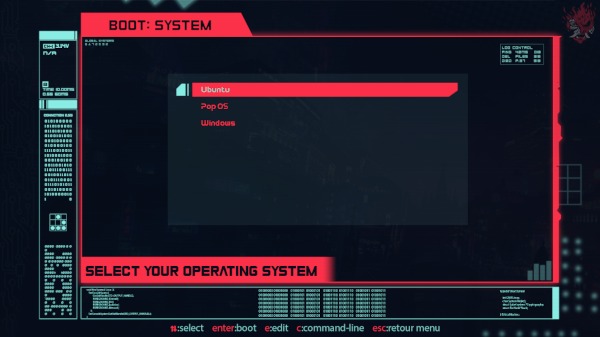
CyberRE

Source: https://www.gnome-look.org/p/1420727/CyberPunk

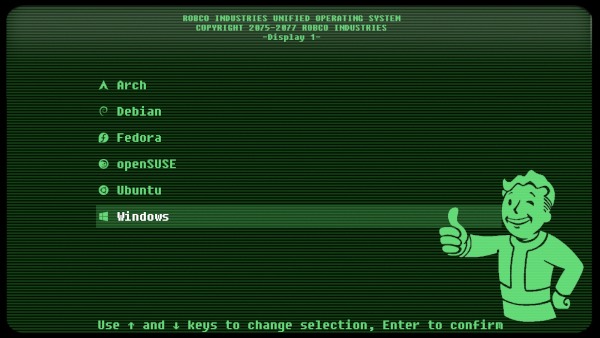
Source: https://www.gnome-look.org/p/1429443/Fallout

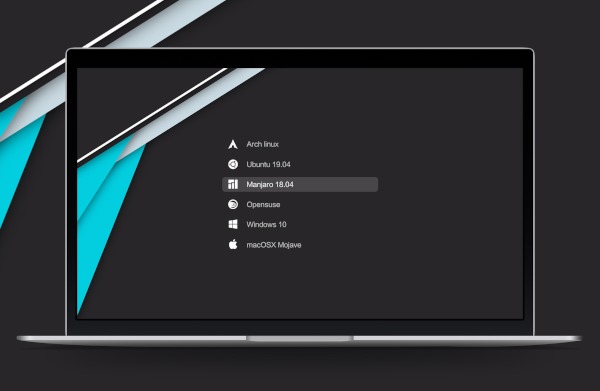
Source: https://www.gnome-look.org/p/1230882/Vimix

Source: https://www.gnome-look.org/p/1009236/Shodan🔗

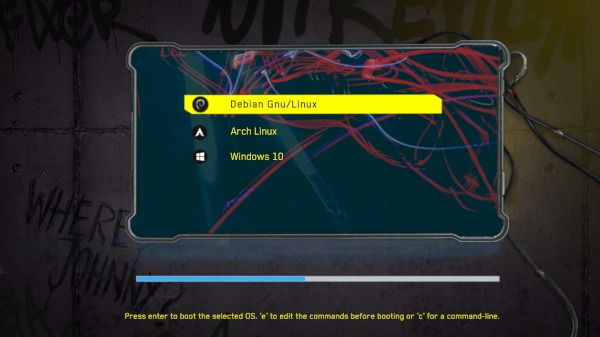
Source: https://www.gnome-look.org/p/1251112/

Linux mint 테마바꾸기..

기본테마만 설치할때는

apt install –reinstall -o Dpkg::Options::=”–force-confmiss” grub2-theme-mint

추가해보고자 했는데..안되었는데…

테마 인스톨 파일에서….
목적지를 /boot/grub/themes 로 바꿔야 함…

edited /etc/default/grub.d/60_mint-theme.cfg
파일에서.. 수정이 필요한데..
관리자권한으로 열기 하면 해당폴더를 높은권한으로 연다..
그럼 수정도 가능..

from

! /bin/sh

set -e

GRUB_FONT=”/boot/grub/fonts/UbuntuMono16.pf2″
GRUB_THEME=”/boot/grub/themes/linuxmint/theme.txt”

to

! /bin/sh

set -e

GRUB_FONT=”/boot/grub/fonts/UbuntuMono16.pf2″
GRUB_THEME=”/boot/grub/themes/Vimix/theme.txt”

마지막으로…
sudo update-grub

PC에서 외부접속위한 레지스트리 편집하기

외부에서 시놀로지 WEBDAV를 통한 외부접속을 하기 위해서 PC (사용자 컴퓨터)에서 작업해야 하는것들이 있는데요.

우선 레지스트리의 편집을 해야 합니다.

이는 인증레벨의 수정과 최대 파일크기의 수정을 하는 것입니다.

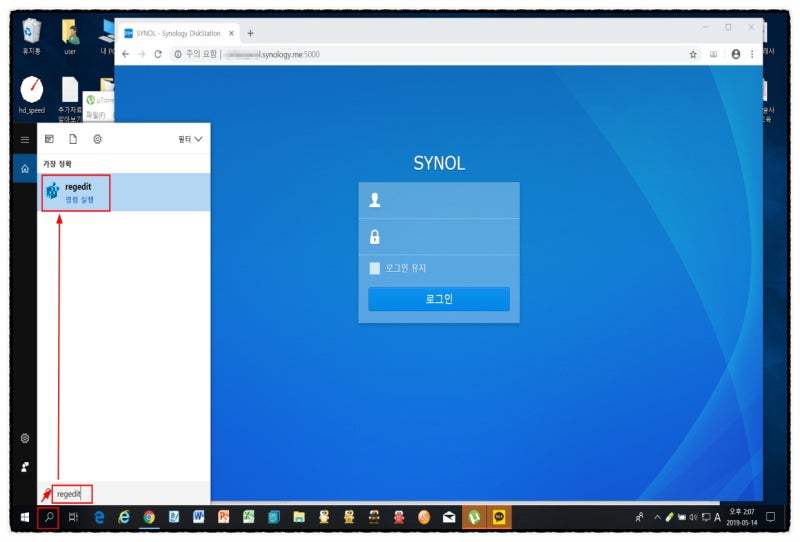
우선 컴퓨터의 시작에서 실행을 위해 검색버튼을 클릭한후 REGEDIT를 입력하면

레지스트리 편집기를 실행할수 있는 REGEDIT 명령실행이 나옵니다.

이것을 선택하세요.

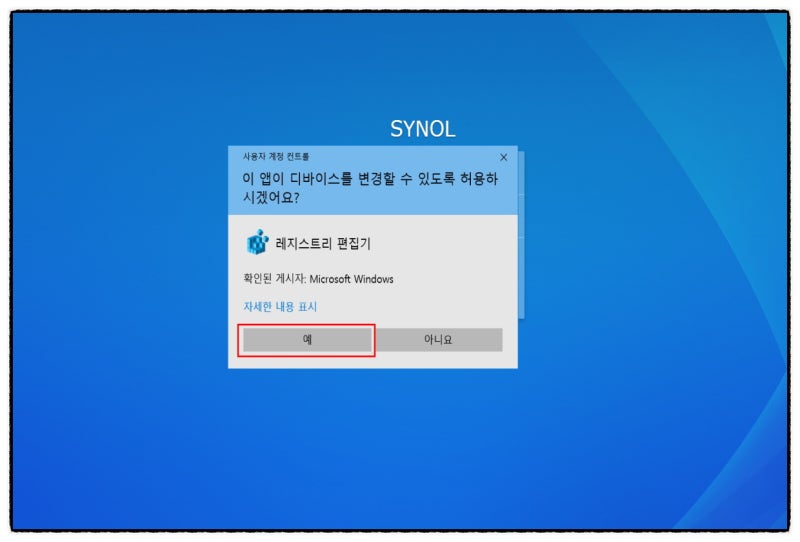
사용자 계정의 정도에 따라 “사용자 계정 컨트롤” 창이 뜨는데요.

저는 일반 사용자계정을 만들어서 사용하기 떄문에 나타나고 administrator 계정으로 로그인한 경우엔

이 화면이 안뜰수도 있어요.

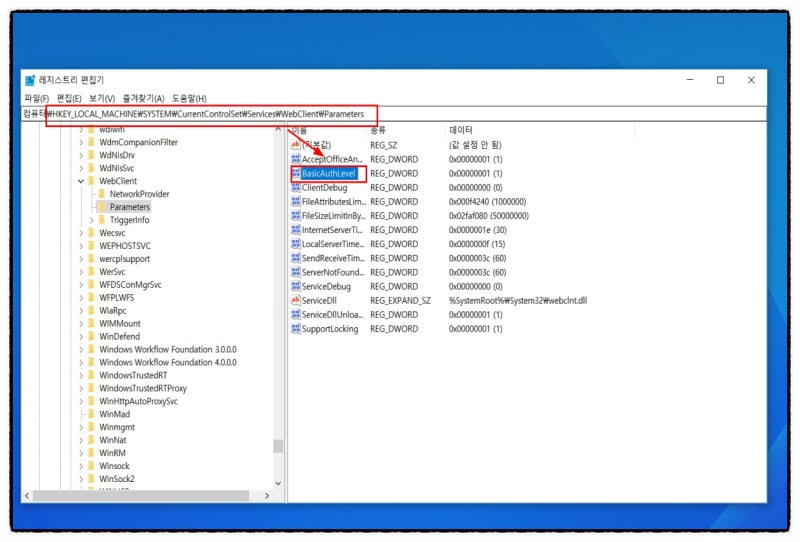
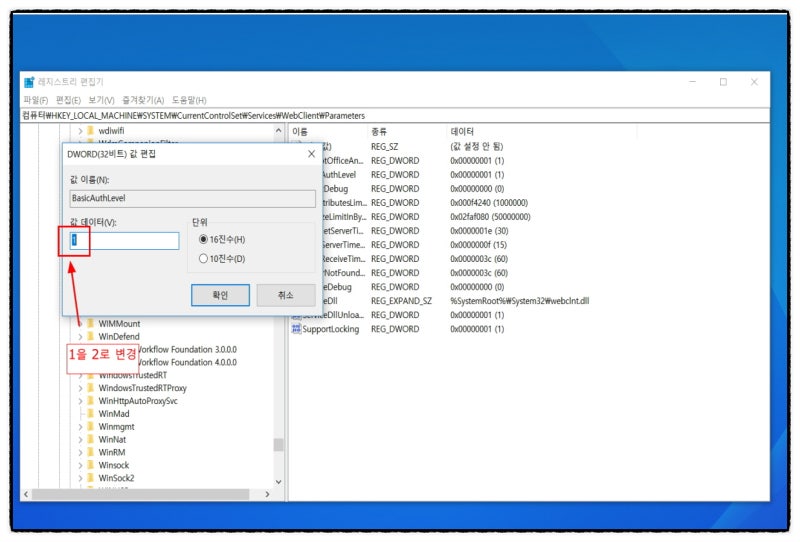
레지스트리 편집기가 실행되었으면 우선 빨간 박스의 위치로 찾아서 내려갑니다.

그다음 오른편의 이름 중에서 BasicAuthLevel 을 선택하고 우클릭한후 수정을 눌르세요.

여기서 값데이터를 2로 변경하면 됩니다.

이부분은 인증수준을 2로 해서 낮추는 작업이라 생각하시면 돼요.

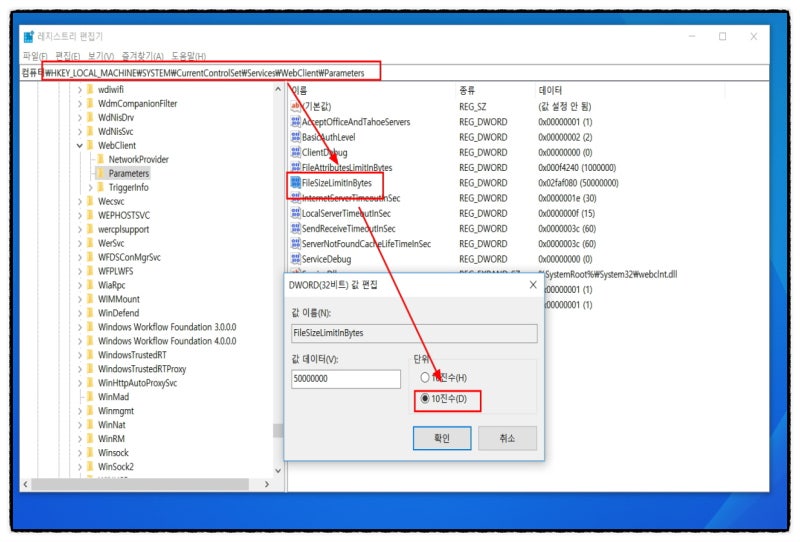
그다음에 추가로 FileSizeLimitinBytes 를 위와 같이 선택한후 값데이터를 변경하는데요

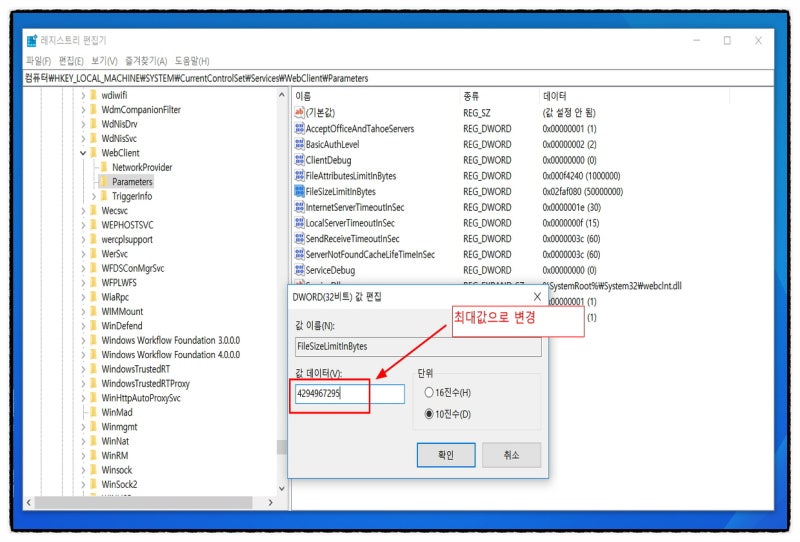
단위를 10진수로 변경하시구요.

값데이터는 최대값인 4294967295를 입력후 확인을 누르시면 되어요.

이것으로 PC 에서의 레지스트리 편집은 모두 끝이예요.~

우리나라에서 자막 파일에 주로 사용되는 형식은 SAMI이다.

그런데, 이 포맷은 치명적인 문제들이 많다.

무엇보다도 HTML에 기반을 둔 포맷이라 표현하지 못하는 글자가 많다1.

게다가, 쓸데없는 태그2가 너무 많아 파일이 깔끔해보이지도 않는다.

그런 등의 이유로 개인적으로는 SRT를 더 선호했는데, 이번에 아예 SRT를 주력으로 하기로 했다.


자막 작업을 하면서 필요로 하던 기능들을 모아 SRT 자막을 손쉽게 조작할 수 있는 프로그램을 만들었다.

이 프로그램의 주요 기능은 아래와 같다.

– SRT 파일 교정: SRT 파일을 읽은 뒤 오류를 수정한 뒤 다시 기록하거나 시간을 조정함

– 자막 변환: SAMI/SSA/ASS 자막을 SRT로 변환, SRT 자막을 SAMI로 변환

– 텍스트 추출: SRT 자막에서 텍스트만 추출

– 텍스트 합치기: 기존의 SRT 자막의 시간 코드에 맞춰 텍스트 파일의 내용을 합침

조금 더 상세히 보면 기능들은 이렇다.

1. SRT 파일 교정

   – OCR 과정에서 따옴표가 잘못 인식된 경우나 I(i)를 l(L)로 잘못 인식된 경우를 수정

   – OCR 과정에서 숫자 사이에 불필요한 공백이 들어간 경우 수정

   – 시간 수정. 일괄적으로 더하거나 뺄 수도 있고, 영상과 fps 및 싱크를 맞추기 위해 일정 비율로 적용 가능

2. 자막 변환

   – SSA/ASS 자막을 지정하면 SRT로 변환함

   – SAMI 자막을 지정하면 SRT로 변환하며, 다중 언어 자막인 경우 별도의 파일로 생성

   – SRT 자막을 지정하면 SAMI로 변환하며, ANSI 포맷의 표준 자막과 UTF-8 유니코드 자막을 동시에 생성

   – 모든 경우에 원본 파일의 코드 페이지를 자동으로 인식하며, 적절히 인식해서 처리함

   – SRT를 생성할 때는 UTF-8 포맷으로 저장하므로 유니코드의 모든 문자를 표현 가능함

3. 텍스트 추출

   – 주로 자막 번역시 편리하게 적용할 수 있는 기능으로, 시간 정보를 제거하고 텍스트만 추출함

   – 번역 시에 이 텍스트 파일을 문단별로 번역하면 됨

4. 텍스트 합치기

   – 3번에서 추출한 텍스트 파일에 다시 시간 정보를 입히는 기능

   – 역시 자막 번역시 활용할 수 있는 기능임

이 프로그램은 아래 링크에서 다운받을 수 있다.

 SRTIER.ZIP

HOW-TO:Modify the video cache

Jump to navigationJump to search

 ▶ advancedsettings.xml
▶ Video library
▶ HOW-TO:Modify the video cache

This page describes three advancedsettings.xml settings that can be used to maximize the video playback cache. You can use all or just a couple of these settings to see significant improvements in cache performance, should you require it (most users will not require these modifications). This can help with intermittent network issues, buffering, reduce how long the network is tied up, and sometimes improve battery life.


Note: Even if you change the cache settings in Kodi, that won’t change how fast the video file data comes in over the network. For example, it won’t make a slow server load the video any faster.

Contents

1 Steps

If you don’t already have an advancedsettings.xml file, it’s very simple to make. Kodi uses this file for advanced settings and features that normal users shouldn’t modify without first knowing what they do, as well as for experimental features, etc.

1Since you can use all or just some of the following settings, let’s start out with the basic file. Create a plain text file (no rich text formatting, don’t use .doc, etc) and save it as advancedsettings.xml. Make sure that the file extension is “.xml” and not “.txt” or “.xml.txt”.
2Cut and paste this into your new plain text file:<advancedsettings> <cache> <!— The three settings will go in this space, between the two cache tags. —> </cache> </advancedsettings>
3Add some or all of the settings tags from the next section.
4Save this file in your userdata folder:Note: If you have an existing file, make sure the <cache></cache> tags, and settings we’ll add between them, are between the main <advancedsettings></advancedsettings> tags.The Userdata folder is a subfolder of the Kodi Data Folder and is located as shown in the table below.Operating systemUserdata FolderAndroidAndroid/data/org.xbmc.kodi/files/.kodi/userdata/ (see note)iOS/private/var/mobile/Library/Preferences/Kodi/userdata/LibreELEC/storage/.kodi/userdata/Linux~/.kodi/userdata/Mac/Users/<your_user_name>/Library/Application Support/Kodi/userdata/Nvidia Shield (SMB)smb://<nvidiashieldurl>/internal/Android/data/org.xbmc.kodi/files/.kodi/userdataOSMC/home/osmc/.kodi/userdata/tvOS/private/var/mobile/Library/Preferences/Kodi/userdata/Windows%APPDATA%\Kodi\userdataWindows Portable<Install location chosen by you>\portable_data\userdata\Windows via Microsoft Store%LOCALAPPDATA%\Packages\XBMCFoundation.Kodi_4n2hpmxwrvr6p\LocalCache\Roaming\Kodi\Windows Xbox%LOCALAPPDATA%\Packages\XBMCFoundation.Kodi_4n2hpmxwrvr6p\LocalCache\Roaming\Kodi\Note: In some Android setups the path may be slightly different to the one stated above.

2 Cache settings

advancedsettings.xml tagwhat it does
<buffermode>1</buffermode>Choose what to bufferThis setting will force Kodi to use a cache for all video files, including local network, internet, and even the local hard drive. Default value is 0 and will only cache videos that use internet file paths/sources.0Buffer all internet filesystems (like “2” but additionally also ftp, webdav, etc.) (default)1Buffer all filesystems, both internet and local2Only buffer true internet filesystems (streams) (http, etc.)3No buffer4All network filesystems (incl. smb, nfs, etc.)
<memorysize>20971520</memorysize>Increasing the cacheHere we can do two things:Value: 20971520 (or any value, in bytes)  keep the cache in RAM, but increase how much RAM is used. The number is the buffer size in bytes (20971520 is the default, which is 20MB, which requires 60MB of free RAM). Kodi will not buffer ahead more than this. Note: For the memory size set here, Kodi will require 3x the amount of RAM to be free. Setting this too high might cause Kodi to crash if it can’t get enough RAM.orValue: 0 – we can use the local disk memory (typically your hard drive), which will not put any limit on the size (outside of the size of your drive). This also allows devices with low RAM, such as the Raspberry Pi, to cache more than they normally would due to the small amount of RAM they have. The cache is deleted from the local disk whenever playback is stopped. Note: This will likely cause increased wear-and-tear on your drive.
Note: Do not use the 0 (zero) setting if you have a device with a low amount of local storage, such as 8GB on a Fire TV. As a general rule of thumb, only use this setting if you have at least 16 GB of local drive space that is currently free on the device. Otherwise, Kodi will stall and stop playing the video, or might even crash.
<readfactor>10</readfactor>Increase the fill-rate of the cacheBy default (value: 4), Kodi will only fill the cache a little above what is needed to play it back. It does this as to not max out your network and possibly max out some hardware. For most users and hardware, this setting shouldn’t cause any issues, but be aware of it if you have unusual CPU spikes in your HTPC.
The value of this setting is a multiplier of the default limit. If Kodi is loading a typical bluray raw file at 36 Mbit/s, then a value of 2 will need at least 72 Mbit/s of network bandwidth. However, unlike with the RAM setting, you can safely increase this value however high you want, and Kodi won’t crash. Just know that it might cause Kodi to attempt to use all available bandwidth on your HTPC during playback.

3 Kodi v17 changes

In Kodi v17, the cache-related tags were removed from <network> and placed under a new <cache> tag. In addition, the following tags were renamed:

  • <cachemembuffersize> was renamed to <memorysize>
  • <readbufferfactor> is renamed to <readfactor>

4 Examples

Emblem-important-yellow.pngNOTICE:
These are just examples to explain how the feature works. Most users will just want to use example 4.

4.1 Example 1

All three options enabled, using local hard drive for cache.

Stop hand.pngDo not use this for flash-based memory devices.

advancedsettings.xml

<advancedsettings>
  <cache>
    <buffermode>1</buffermode>
    <memorysize>0</memorysize>
    <readfactor>30</readfactor>
  </cache>
</advancedsettings>

4.2 Example 2

Only cache size changed, using 100MB of RAM for cache (which requires 300MB of free RAM).advancedsettings.xml

<advancedsettings>
  <cache>
    <memorysize>104857600</memorysize>
  </cache>
</advancedsettings>

4.3 Example 3

Two options enabled, using 50MB of RAM for cache (which requires 150MB of free RAM), and cache both internet, LAN, and local content.advancedsettings.xml

<advancedsettings>
  <cache>
    <buffermode>1</buffermode>
    <memorysize>52428800</memorysize>
  </cache>
</advancedsettings>

4.4 Example 4

A safe setting for most devices with 1GB of RAM that should help most users “on the edge”. All protocols get cached, cache rate fills up pretty much as fast as possible, and cache size is about 133MB, using about 400MB of ram total.advancedsettings.xml

<advancedsettings>
  <cache>
    <buffermode>1</buffermode>
    <memorysize>139460608</memorysize>
    <readfactor>20</readfactor>
  </cache>
</advancedsettings>

5 See also

Page updated for v18Categories

audacity 완벽정리 및 audacity 사용법 꿀팁 – 오다시티

오다시티(audacity) 는 무료 음악 편집 프로그램으로써 잡음을 제거할 수 있고 음악파일을 마음대로 자르고 붙일 수 있는 프로그램입니다. 사용법도 매우 간단하며 한글 적용이 되기 때문에 누구나  쉽게 사용이 가능하다는 장점이 있습니다. 오다시티 설치 및 간단한 오류해결과 사용법에 대해 알려드리도록 하겠습니다.

오다시티의 주요 기능은 아래 사진을 참고하시기 바랍니다. 저도 몇가지 무료 음악 편집 프로그램을 사용해봤었는데요. auda시티 만큼 소음 제거 기능이나 편집 기능이 쉽고 잘되있는 프로그램은 없던 것 같네요.

간단하게 설치 방법부터 알려드리도록 하겠습니다. 가장 먼저 아래 링크를 클릭 – 무료 다운로드 버튼 클릭해서 설치파일을 다운로드 받습니다. 네이버 로그인 시 고속 다운로드를 받으실 수 있기 때문에 로그인 후 설치 파일을 받으시는 걸 권장합니다.

설치 파일을 다운로드 받으시고 실행시키시면 설치가 진행되는데요. English 선택 후 OK버튼을 클릭합니다. 간혹 English버전이 아니라 한글버전으로 받는 방법은 없는지 궁금해하시는 분들이 계신데요. 여기서 English를 선택해도 한글버전으로 설치가 되기 때문에 걱정안하셔도 될 것 같네요. ^^

OK버튼 클릭 후 다음 나오는 화면에서 Next -> 그 다음 화면에서도 Next 버튼을 클릭합니다. 정보를 소개하는 창이기 때문에 바로 넘어가셔도 상관없습니다.

Next 버튼을 클릭하시면 경로 설정하는 화면이 나오는데요. C드라이브의 용량이 부족한게 아니라면 기본적으로 설정되어있는 경로로 설치하시는걸 권장합니다.

경로 설정 후 Next 버튼을 클릭하시면 아래 사진과 같은 화면이 나오는데요. 첫 번째 체크 박스는 바탕화면에 바로 가기 생성 유무, 두 번째 체크 박스는 설정을 초기화하는 체크박스입니다. 첫 번째 체크박스에만 체크 후 Next 버튼을 클릭합니다.

다음 화면에서 Install 버튼을 클릭하시면 설치가 진행됩니다. 설치 완료 후 Finish 버튼을 클릭하시면 설치가 완료됩니다.

다음으로 간단한 사용법 및 오류 해결 방법에 대해 알려드리도록 하겠습니다

가장 먼저 파일(F) 버튼 클릭 – 가져오기(I) 버튼 클릭을 하시면 오디오, 레이블 등 다양한 형식의 파일을 불러올 수 있습니다.

파일 편집 방법 (자르기, 붙이기) 은 자르고 싶은 부분을 드래그 하시면 구간이 선택되는데요. 구간 선택 후 자르기를 원하시면 가위 버튼(잘라내기)을 클릭, 붙이고 싶으시면 붙여넣기 아이콘을 클릭하시면 됩니다. ^^ 해보시면 아시겠지만 전혀 어렵지않고 누구나 하실 수 있는 수준입니다.

이런식으로 원하는 대로 파일을 편집 후 저장을 해야겠죠? 저장 방법은 파일(F) 버튼 클릭 – 내보내기 버튼 클릭 후 파일이름과 mp3 파일 형식으로 변경 후 저장 버튼을 클릭합니다. 파일 형식은 마음대로 하셔도 되긴 하는데 보통 mp3 파일 형식을 많이 쓰기 때문에 mp3 파일 형식으로 하시는걸 권장합니다.

내보내기를 진행하시다가 아래 사진과 같이 lame_enc.dll파일이 필요하다는 메시지 창이 뜨는 경우가 있는데요. 오른쪽에 다운로드 버튼을 클릭합니다.

다운로드 버튼을 클릭하시면 아래와 같은 페이지로 이동하는데요. 가운데 exe 응용 프로그램을 다운받아 설치하시면 됩니다. 헷갈리시는 분들을 위해 아래에 링크를 첨부해두었으니 참고하시기 바랍니다. 설치화면이 열리면 그냥 다음 버튼만 모두 눌러주시고 마지막에 Finish 버튼만 눌러시면 완료됩니다. 매우 간단합니다.

Lame 설치 완료 후 다시 프로그램으로 이동해서 내보내기 버튼 클릭 – 파일 저장을 하시면 완료됩니다. ^^

여기까지 audacity 완벽정리 및 audacity 사용법 꿀팁 – 오다시티 에 대해 알아보았는데요. 사용법이 매우 간단하고 무료 프로그램이기 때문에 먼저 사용하시다가 어느정도 익숙해지시면 유료 프로그램도 한번 써보시는 것도 좋을 것 같습니다. 저도 현재 그렇게 하고있는데 확실히 처음에 무료 프로그램이 익숙해 진 후에 사용하는게 좋은 것 같더라구요.

docker volume관련…

docker volume ls : 볼륨을 보여줌…

docker volume prune : 컨테이너에서 사용하지않는 볼륨 삭제

Docker image prune : 컨테이너에서 사용하지않는 이미지 삭제..

docker volume inspect 볼륨명…

Library Node Editor

1 Installing

This add-on is installed from the Add-on browser located in Kodi as follows:

  1. Settings
  2. Add-ons
  3. Install from repository
  4. Program Add-ons
  5. Library Node Editor
  6. Install

2 About

The Library Node Editor allows you to create and customise custom video nodes and music nodes within Kodi.

3 Anatomy of a Custom Node

3.1 Parent nodes

Parent nodes act like folders – they contain nodes, and can contain parent nodes. You can also add rules to a parent node, which will be applied to all nodes immediately within it.

3.2 Nodes

Nodes describe views of your media. They can include multiple elements which describe what media Kodi will display, and how it will filter it. A new node will let you set one of two parameters, either ‘Content’ or ‘Path’. If you select ‘Content’, then you will be able to create a node based on various rules. If you select ‘Path’, you will be able to create a node which links directly to a library path with various path components specified within the editor.

3.2.1 Content

Set content to the type of media that Kodi will display in this node. Either Movies, TV Shows, Episodes or Music Videos for a video node; Artists, Albums or Songs for a music node. Once content is set, new options become available.

3.2.1.1 Order

Set the property of the media that it will be ordered by in the view. You can select the property (title, year, director, etc) and the direction that it will be ordered (ascending, descending)

3.2.1.2 Grouping

Group media be a given property (genre, actor, director, etc)

3.2.1.3 Limit

Limit the number of results that will be returned

3.2.1.4 Rule

A rule that must be matched by any content that will be returned. Rules are made of three parts – the property of the media that is being queried (title, year, director, etc); the operator (Is, Is Not, etc) and the value that must be matched.

3.2.2 Path

Set content to a particular videodb:// or musicdb:// address provided by Kodi. For example, for recently added movies, videodb://recentlyaddedmovies/. You will then be able to specify additional components of the path to customise what content will be available.

4 Examples

4.1 Add a ‘Recently Viewed’ node

To add a new ‘Recently Viewed’ node which shows the last 20 watched items to an existing parent node:

  1. Open the Parent Node you wish to add the Recently Viewed node to
  2. Select ‘New Node…’ and give it the title ‘Recently Viewed’
  3. Open the ‘Recently Added’ node you just added
  4. Select ‘Add content…’ and choose the content that matched the Parent Node you are using
  5. Select ‘Add limit…’ and type 20 in the dialog
  6. Select ‘Add order…’
    1. Select ‘Title’ and change this to ‘Last played’
    2. Select ‘ascending’ and change this to ‘Descending’
    3. Back out of the ‘Order’ property by clicking ‘..’ or pressing Back

4.2 Limit content by path

To add a new Parent Node for video nodes which only shows movies from a particular path. (This presumes that differing types of media you want to display are kept in different sources. In this example, the source is smb://anime/)

  1. Select ‘Video Library’
  2. Select ‘New parent node…’
    1. Type a title which corresponds to the type of media you want to display, for example ‘Anime’
    2. Choose ‘Movies’ when asked which defaults to start with. This will give you all the nodes you will find under the default ‘Movies’ Parent Node
  3. Open the new Parent Node you just added
  4. Select ‘Add Rules…’
    1. Select ‘Title’ and change to ‘Path’
    2. Select ‘contains’ and change to ‘starts with’
    3. Select ‘<No value>’ and type in ‘smb://anime/’ OR select ‘Browse for value’, open the source containing your media and click OK.

All nodes within your new Parent Node will now be limited to content from that path.